Navexa Live: Join Tom & James on 4 November
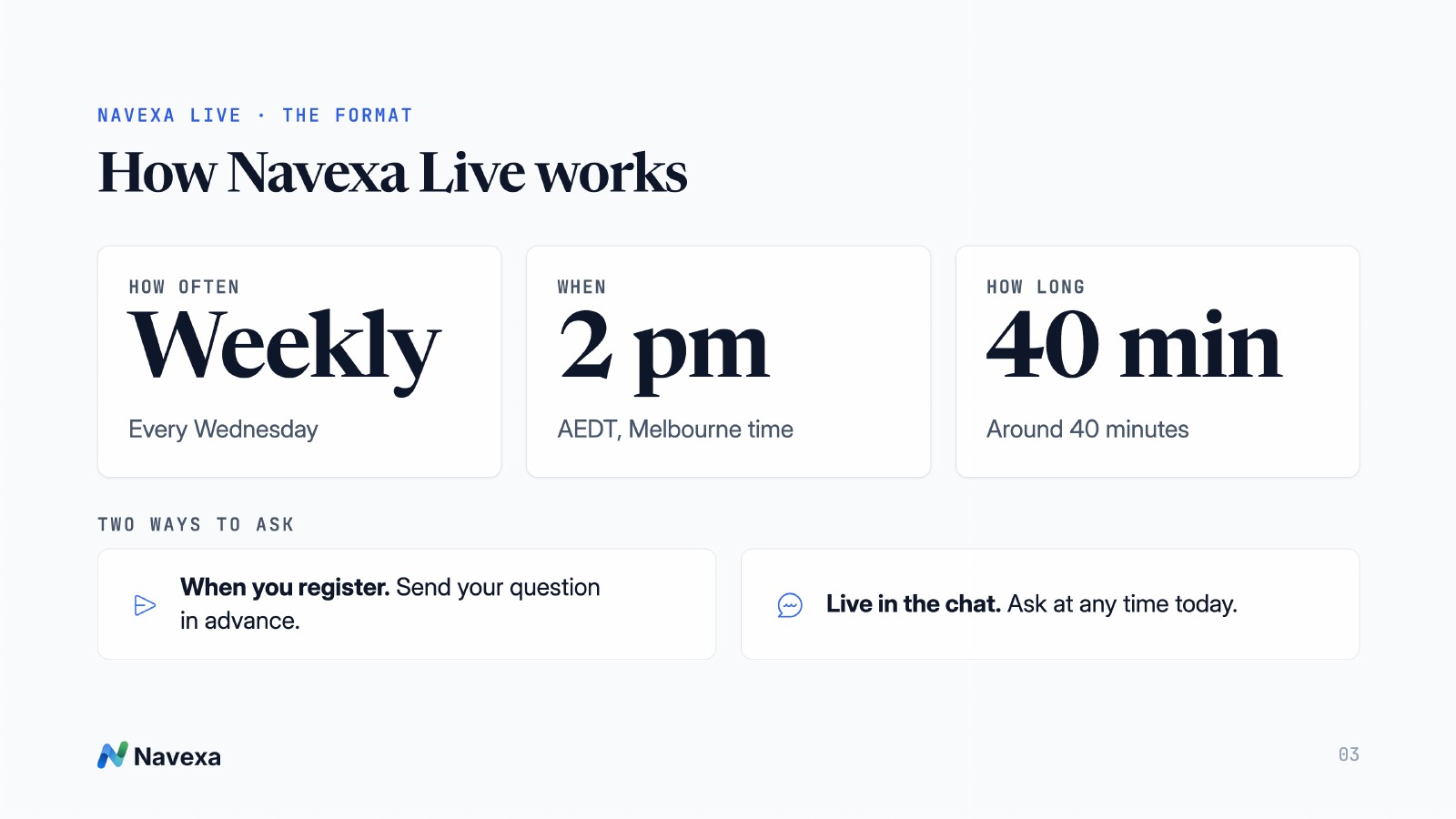
Join Tom and James for weekly Navexa demos and Q&A. The next session is on 4 November at 2 pm AEDT. Register, submit a question and receive the recording.
What sits inside your ETFs, and how much of the same company do you hold through different funds? How do you turn a useful Roi prompt into a check you can run again?
In our second Navexa Live with Tom & James, recorded on 4 November, Tom Wilson and James Tattersfield previewed Portfolio X-Ray, built a reusable Roi skill and worked through questions about dividend reinvestment, getting data into Navexa and keeping share-registry details handy.
James also shared an example of connecting a piece of reading with portfolio data through Claude and Navexa’s MCP connector. Watch the replay, jump to a topic or follow the practical takeaways below.
Navexa Live with Tom & James. A Portfolio X-Ray preview, reusable Roi skills and your questions.
Open on YouTube ↗Recorded 4 November 2026 · Approximately 39 minutes.
Prefer to read? Follow the highlights and audience questions below.
Jump to a topic using these approximate chapter starts. There was some screen-sharing lag during the session; the slides below provide a clearer reference for the prepared material.
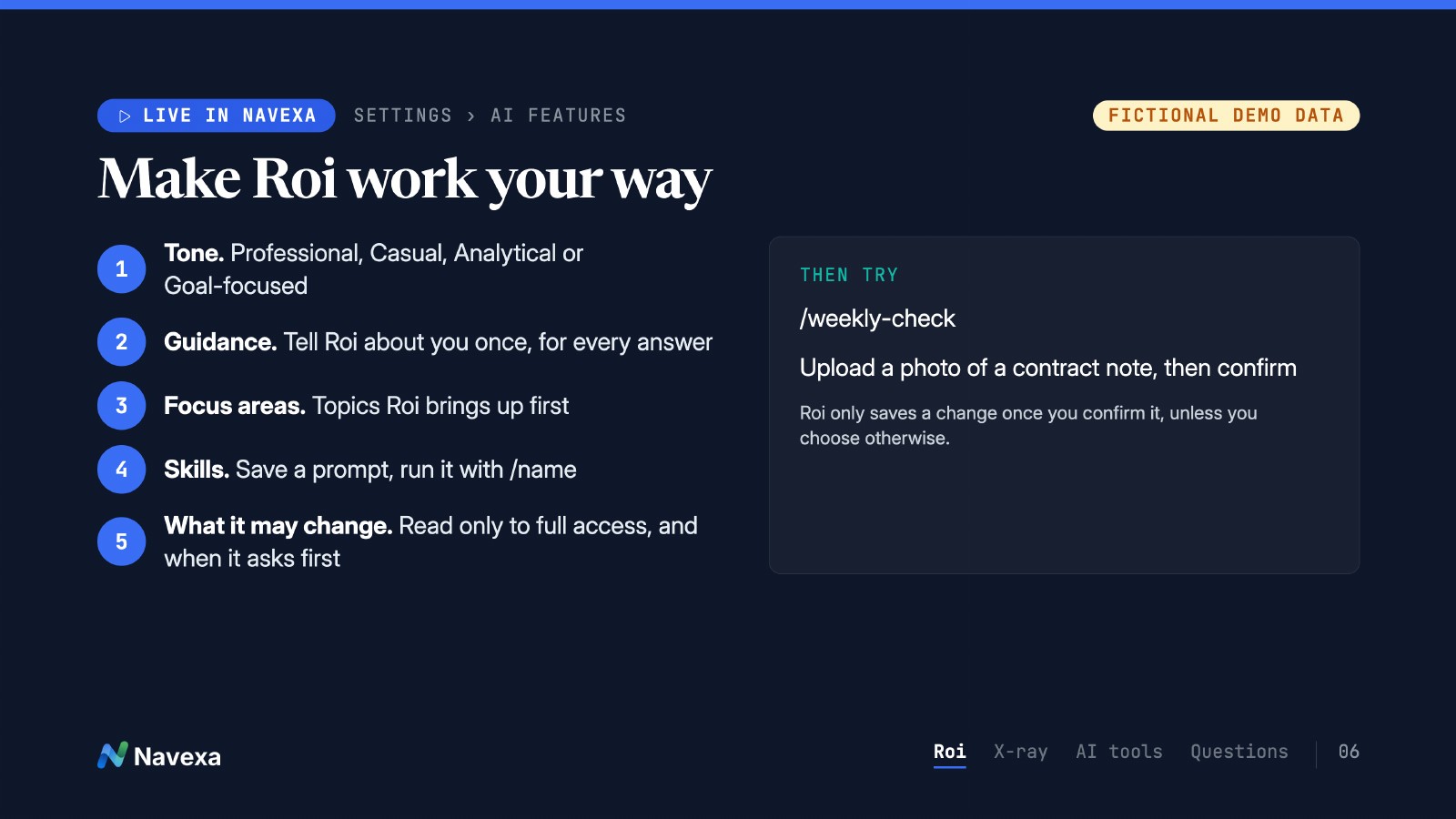
The first demonstration started in Settings → AI Features. James guided Tom through tone and response preferences, then helped him save a skill for a recurring portfolio check.
A skill saves instructions you would otherwise type again. In this example, the job was to summarise the past seven days: the change in portfolio value, the holdings driving it and dividends paid during the period.
Here is an example to adapt from the demonstration:
Roi returned a seven-day summary in the demo, including the main contributors and dividend information. The useful part is having a repeatable starting point. You can ask follow-up questions about a figure or open the relevant records to check it.
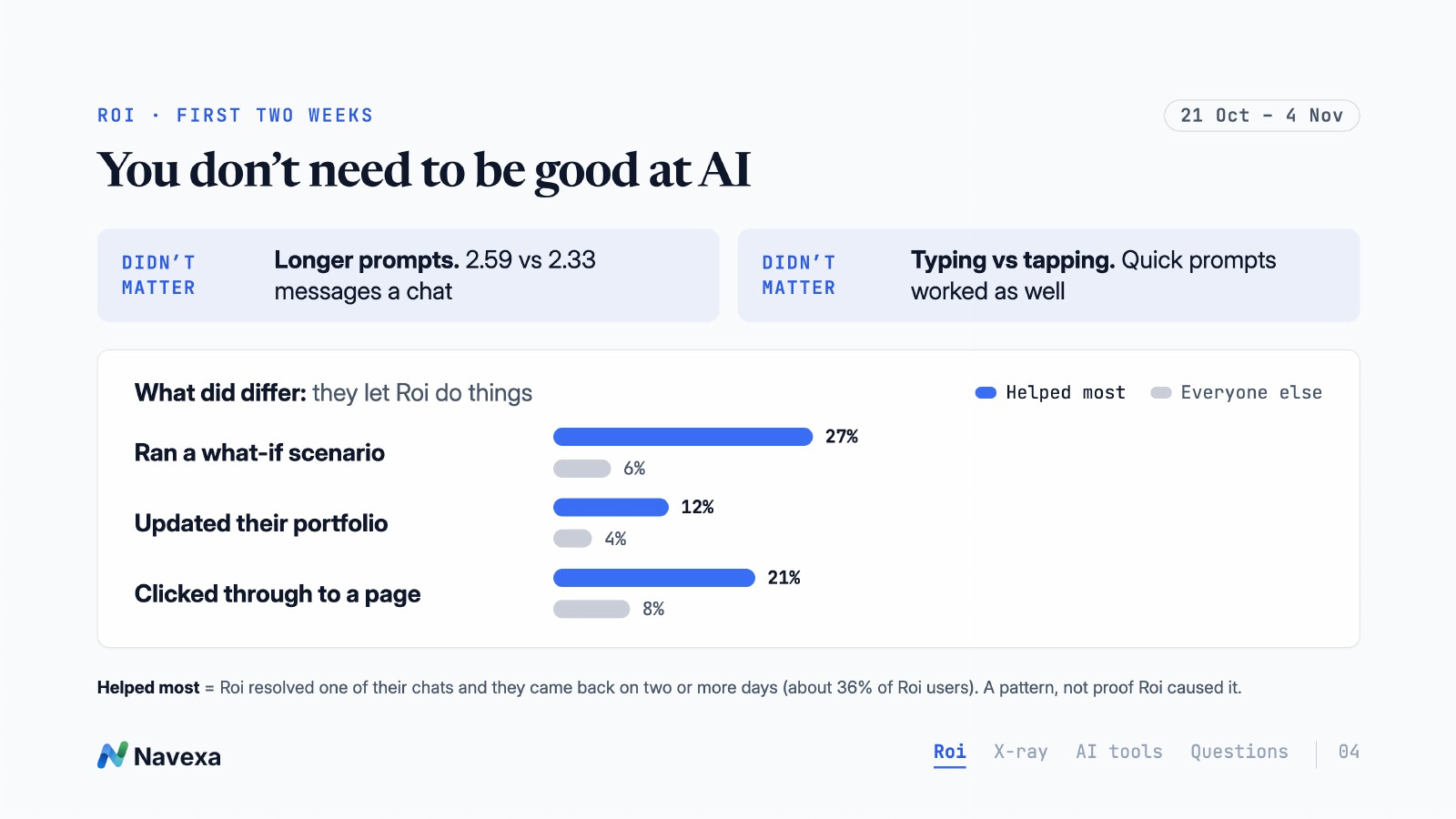
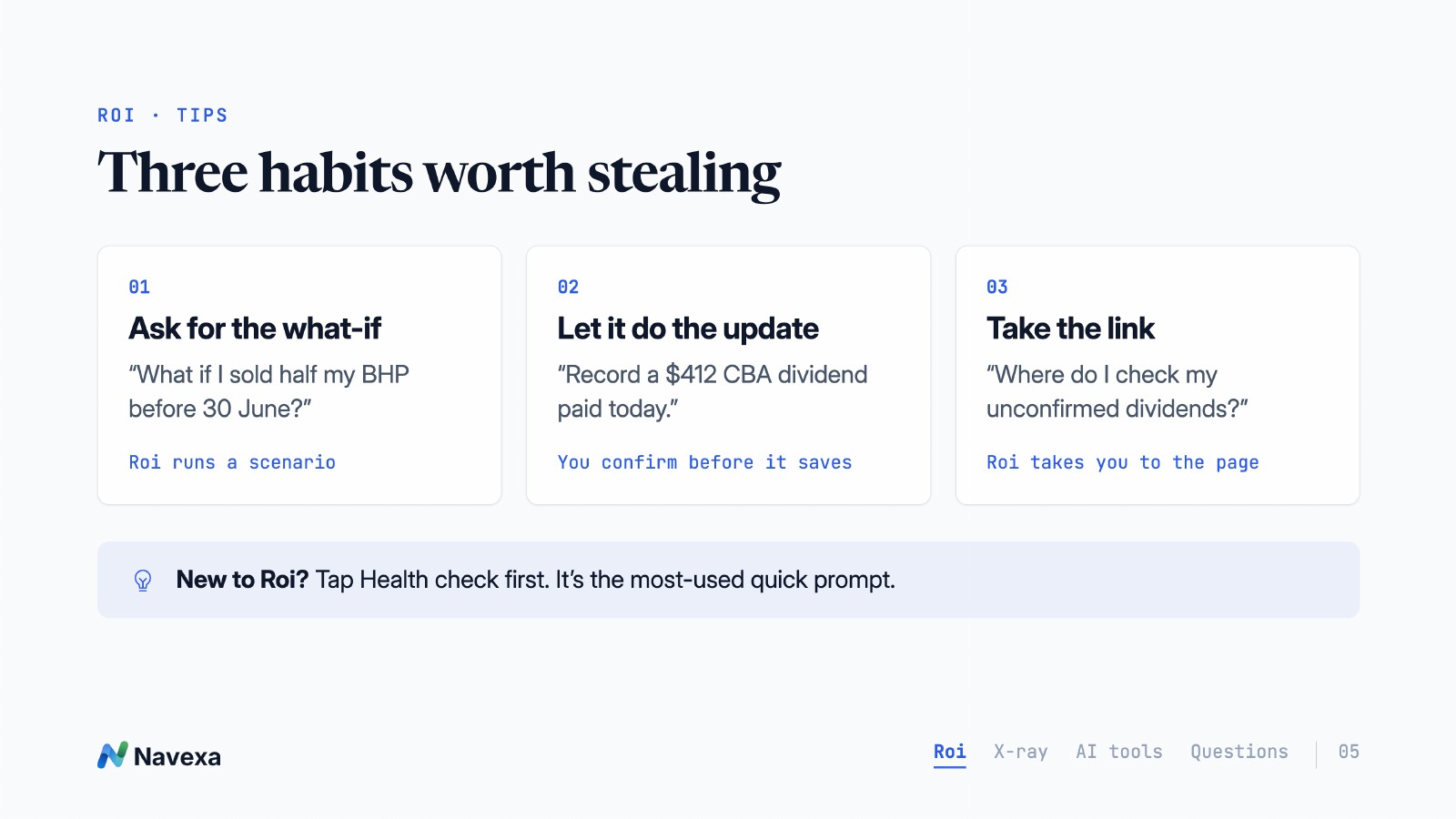
James’s broader message was to start with a practical task. You can tap a quick prompt, ask for help finding a page or describe a record you want to review. You do not need an elaborate prompt to begin.
Roi’s ability to change records depends on your access settings. Review those settings and check proposed changes against your supporting records. See Manage Roi settings for skills and preferences, and Review and approve changes from Roi for the approval workflow.
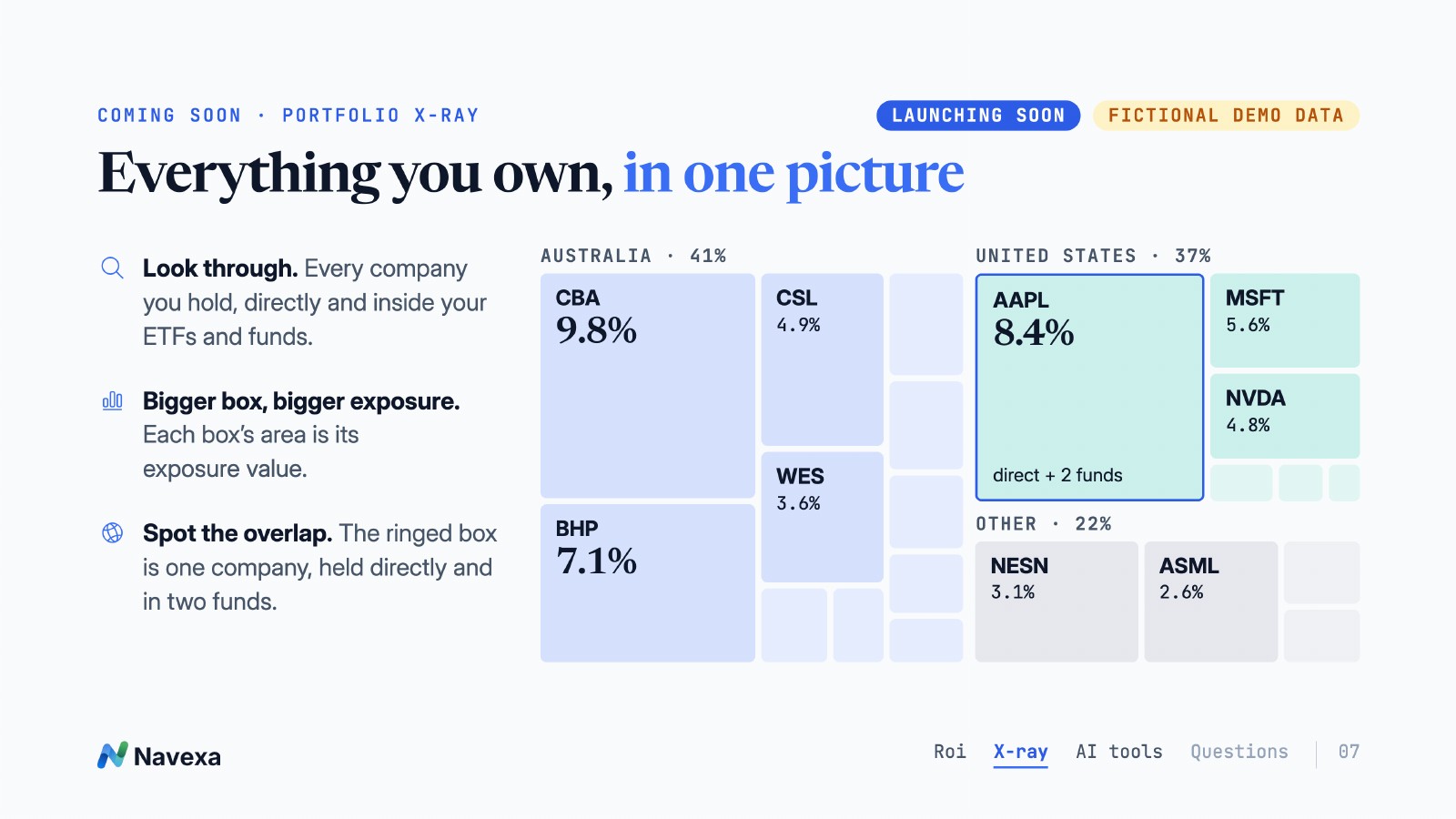
Portfolio X-Ray was the session’s main preview. It looks through supported ETFs and funds to show the underlying companies alongside shares held directly.
Tom demonstrated it in a webinar portfolio under Performance → X-Ray. The treemap used larger boxes for larger exposure values, with other chart views and groupings offering different ways to examine the same portfolio.
The important distinction is between the investments you bought and the companies you are exposed to through them. In the example, Apple appeared as a direct holding and inside both NDQ and VGS. Opening Apple’s entry in the list brought up a breakdown of those sources.
Tom then opened a fund, examined its underlying holdings and explored its overlap with another ETF. Filters narrowed the view to companies held through the selected funds. Country and industry groupings helped show where exposure was concentrated.
Those values belonged to the fictional demonstration portfolio. Your results depend on your holdings, the underlying data available and the filters selected.
A viewer asked whether X-Ray could work across multiple portfolios combined in a Portfolio View. James checked during the session and confirmed that it worked in his test.
X-Ray was presented as coming soon on 4 November. The team said initial coverage would focus on Australian and US funds, with more added over time. The demonstration was a preview rather than a statement that it was available to every account.
A future connection between X-Ray and Scenarios was also discussed. That was a direction for further work, not a feature demonstrated in this session. Check the Navexa changelog for release announcements.
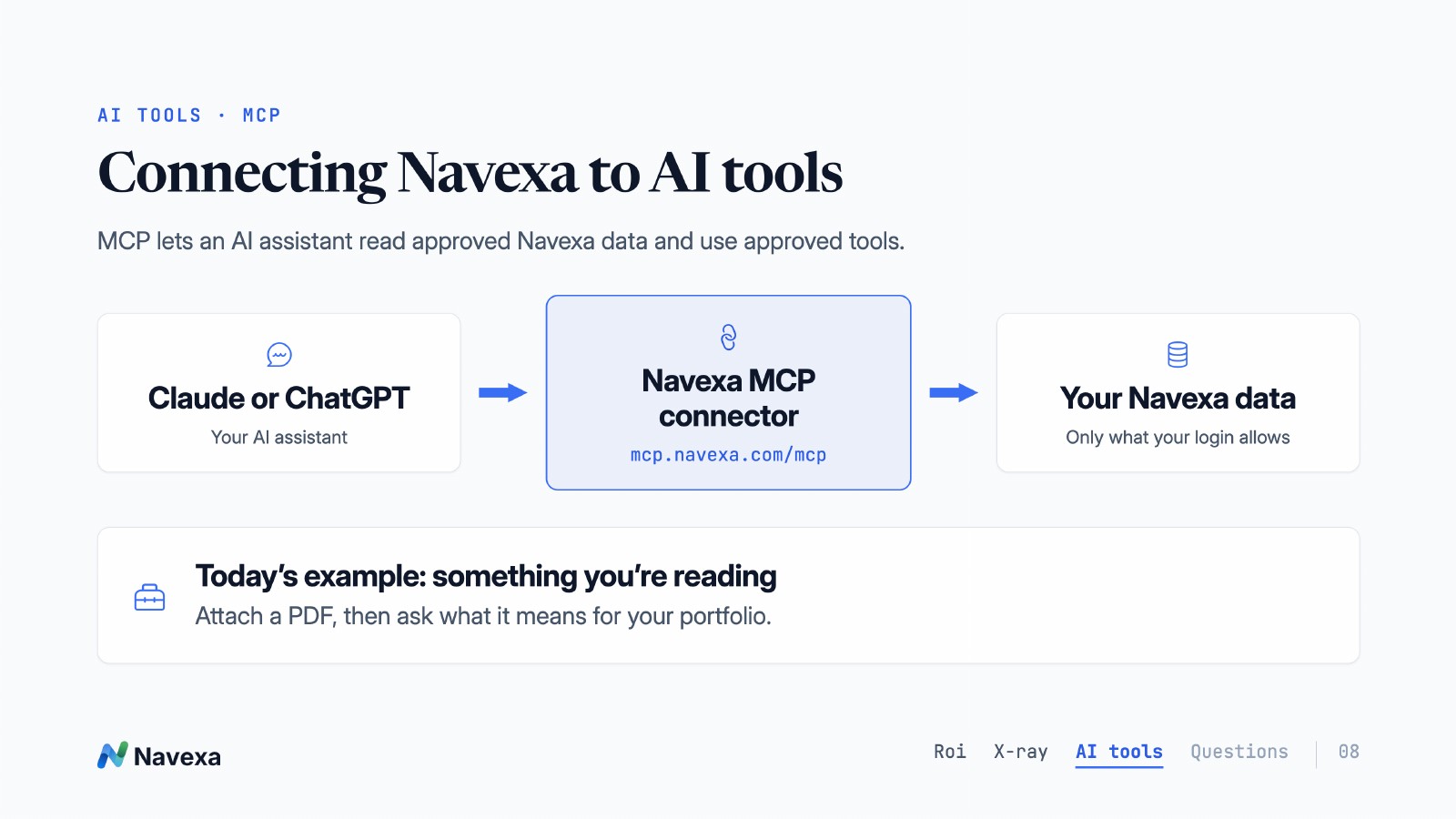
James’s example started with a PDF he had been reading, Commanding Heights. He illustrated using Claude with the Navexa MCP connector to explore questions about a portfolio in the context of that reading.
MCP, or Model Context Protocol, lets an external AI assistant use approved Navexa data and tools. It is a separate conversation from Roi, which is built into Navexa.
The exercise was conditional: if a paper’s assumptions came to pass, what parts of the recorded portfolio would be relevant to examine? It was an exploration of a hypothesis, not a forecast or a recommendation to change investments.
One essay. One big “if”. Explore a reading’s assumptions with a fictional portfolio.
Open the video ↗41-second silent illustrated example. The portfolio and scenario are hypothetical, not a forecast or investment recommendation.
Watch James introduce the example from 25:04 in the replay. For connection instructions, see Connect Navexa to Claude or ChatGPT. Review the requested access and your AI provider’s data settings before connecting.
This came up in the live chat. Tom and James did not confirm whether the X-Ray-specific data was exposed through MCP. It remained a follow-up question at the end of the session.
James raised a common source of mismatched quantities after an import: dividend reinvestment plan settings may not come through from the broker with the trades.
In the demonstration, Tom asked Roi to turn on DRP for the selected holding. Roi asked about the rounding method, Tom selected an option for the example and confirmed the change. After refreshing, the updated DRP setting and income records were visible.
If your unit count does not match your statement, check the holding’s actual DRP history, including dates when participation started or stopped. The rounding rule and any carried balance must match the registry’s records. The option selected during the demo is not a default to apply to every holding.
Before saving a change, check which records it will affect, especially where you have already reviewed or confirmed income. Compare the resulting units and transactions with your statements rather than treating a successful save as proof that the records reconcile.
For the manual setup and calculation options, see Automatic dividend reinvestment and Understanding DRP rounding methods.
The Navexa Support YouTube channel contains walkthroughs, and the Help Centre provides written instructions. You can also ask Roi for help setting up your account, importing trades, investigating a data issue or understanding a report.
Tom walked through the options under Add holdings, including supported file imports, manual entry and broker integrations. The right source depends on your broker and the records you have.
The discussion also distinguished trade records from confirming income. A confirmation tick does not replace checking the underlying date, units, price, fees or distribution details against your statements. If you are unsure about a particular record, ask support to review the example.
Automatic dividend-statement uploads through Roi were described as work in progress during the session. They were not demonstrated as an available workflow.
A built-in registry lookup was raised as a feature suggestion. In the meantime, find the registry through the company or fund’s official investor information, then keep that detail in the holding’s Notes.
A viewer said they already used Notes for this. James also suggested a Custom Group to organise holdings by registry, and the team demonstrated keeping a registry note handy. Verify the registry before signing in or acting on a distribution.
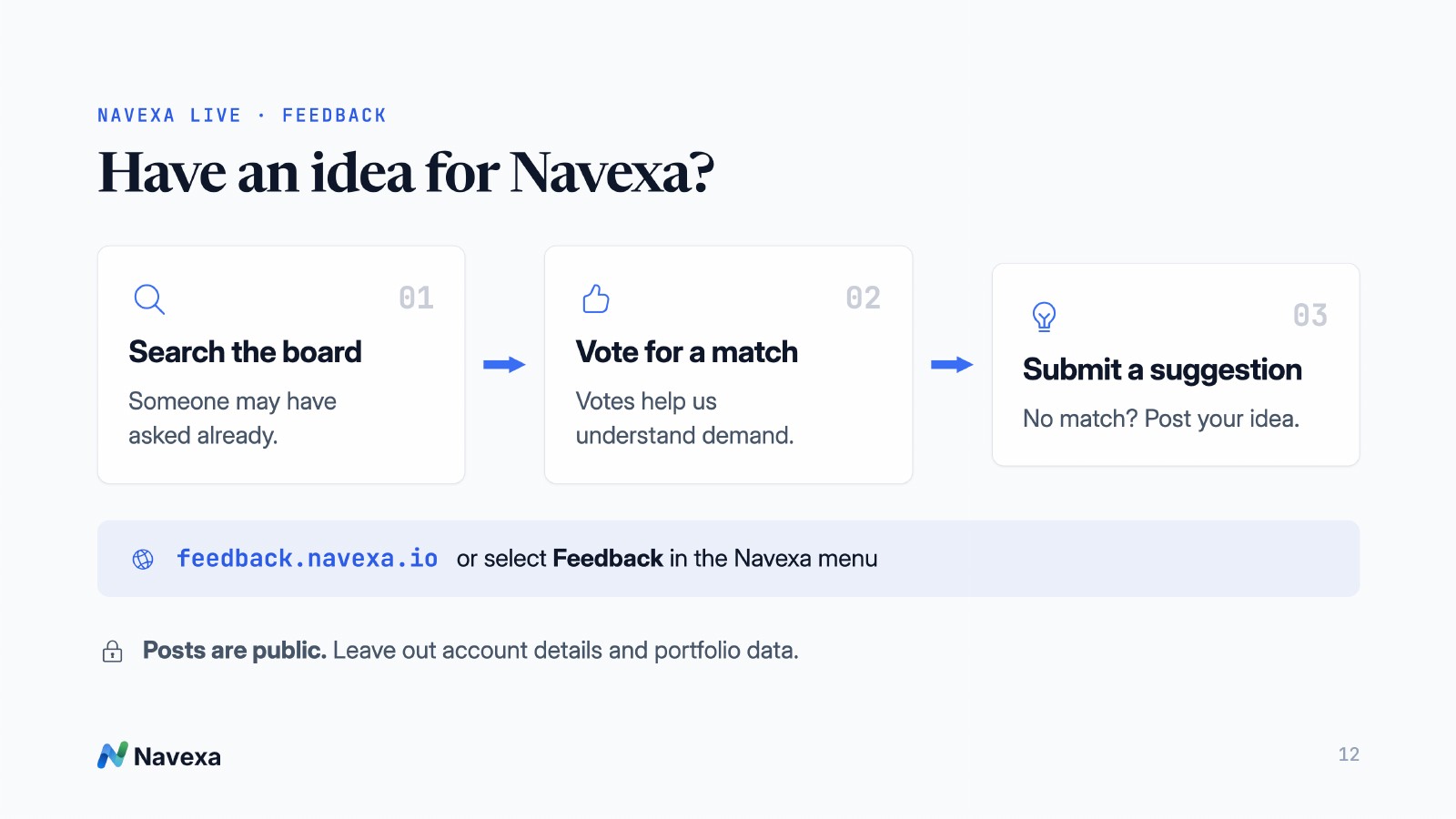
Have another idea? Search the feedback board for an existing suggestion and vote for a match before posting a new one. Feedback posts are public, so leave out account details and portfolio data.
SESSION RESOURCES
Navexa Live · 4 November 2026
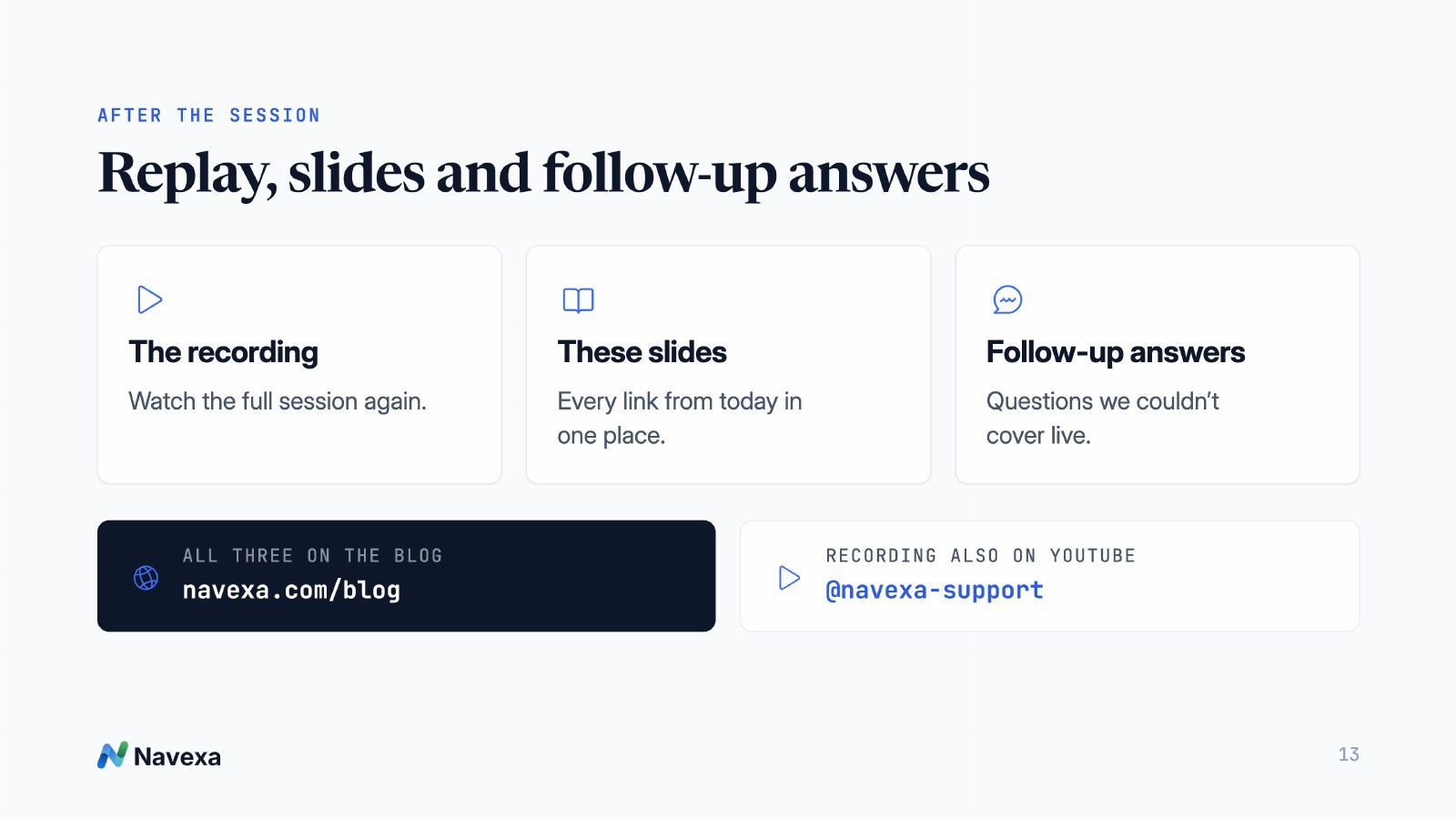
The 13-slide deck, including Roi settings, the X-Ray preview, MCP overview and support links.
Open the slides · Download the PDF



Missed the first session? Read the 28 October recap for Roi housekeeping, Scenarios, cash accounts and James’s gold-tracking example.
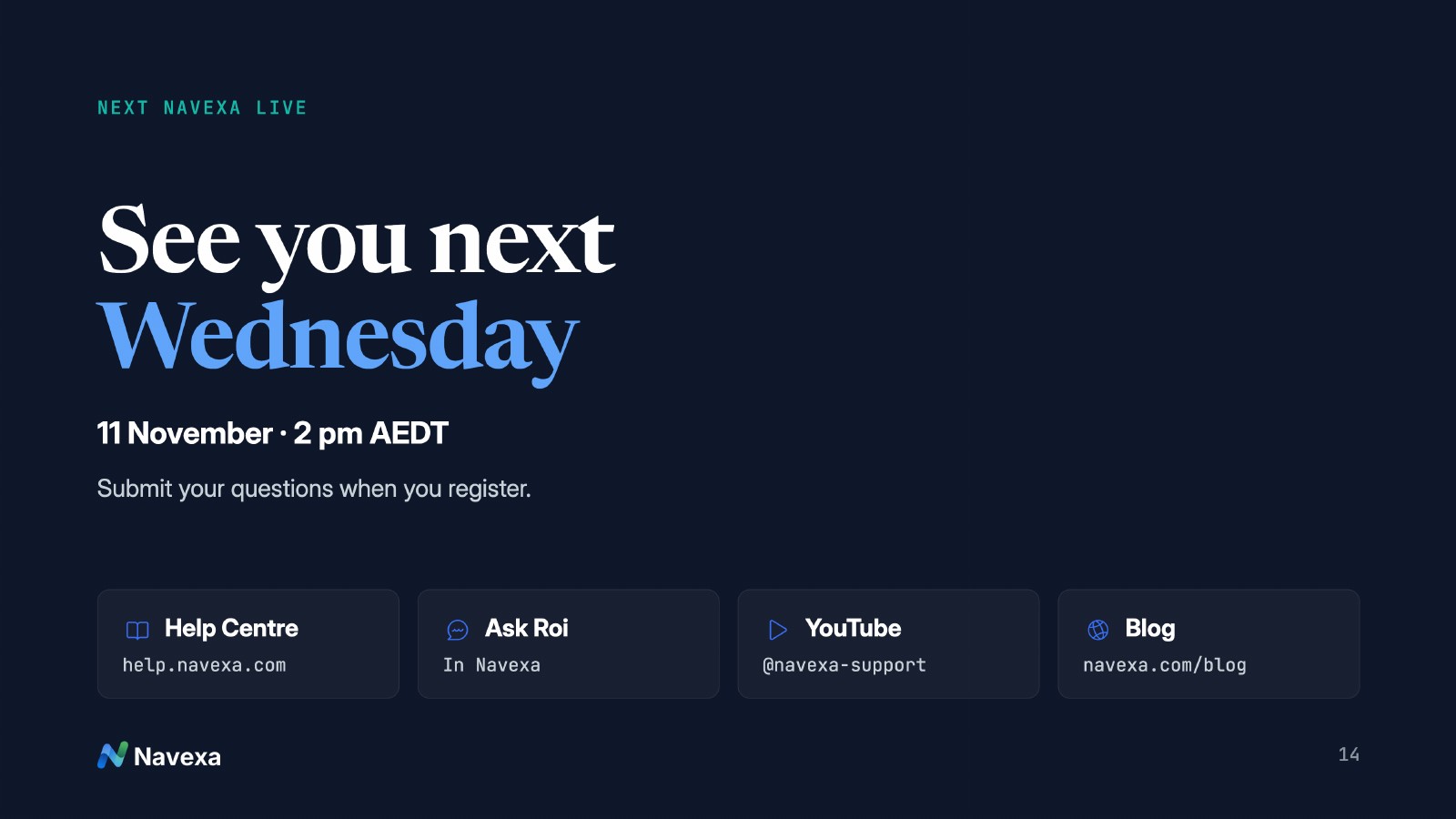
Tom and James announced the next session for Wednesday 11 November at 2 pm AEDT. Follow the Navexa blog and Support YouTube channel for the next session’s details.
This session and article provide product information, not financial or tax advice. Demonstration portfolios use fictional transactions. Investments shown are examples, not recommendations. AI answers can contain mistakes; check important figures against your records.
Track your portfolio in Navexa
Free 14-day trial. No credit card required.
Try Navexa Free →Join Tom and James for weekly Navexa demos and Q&A. The next session is on 4 November at 2 pm AEDT. Register, submit a question and receive the recording.
Watch the first Navexa Live with Tom and James: Roi, Scenarios, gold tracking through MCP, cash accounts and answers to your portfolio questions.
Watch my Marcus Today webinar on investment tax records, AMMA statements, cost base adjustments and parcel selection, with slides and audience questions.