Introducing Navexa Live with Tom & James
Join Tom and James for weekly Navexa demos and Q&A. Our first 40-minute session is on 28 October at 1 pm AEDT. Register, submit a question and receive the recording.

How do you keep track of gold when it doesn’t have a ticker? What happens to your cash balance when dividends go to a different bank account? And how can you explore a hypothetical trade without changing your portfolio?
These were some of the questions behind our first Navexa Live with Tom & James. On 28 October, Tom Wilson and James Tattersfield worked through questions submitted before the session and in the live chat, demonstrated Roi and Scenarios, and shared a gold-tracking example using Navexa’s MCP connection.
Watch the recording below, jump to a topic, or read on for the practical answers and the questions that still need follow-up.
Navexa Live with Tom & James. Roi, Scenarios and your questions answered.
Open on YouTube ↗Recorded 28 October 2026 · Approximately 49 minutes.
Prefer to read? Follow the highlights and audience questions below.
Jump to a topic using these approximate chapter starts:
A useful place to start with Roi is a question about the records already in your portfolio.
In the demo, Tom asked whether there were any issues to review. Roi identified unconfirmed income records, then brought up the distributions for a selected holding. That gave Tom a specific place to check against the supporting statements.
You could try a question such as:
“Which income records in this portfolio are still unconfirmed?”
The team also discussed examples from Roi’s first week: investigating missing trades after a broker move, importing broker files, reviewing a distribution’s financial year and tracing a negative share count to a dividend reinvestment record.
Roi can propose supported changes to your Navexa records. Tom demonstrated adding a trade and confirming the proposed details. Before approving a change, check the date, quantity, price and fees against what actually happened. A suggested price still needs checking against your trade confirmation.
Open Ask Roi from the navigation rail. For the approval workflow, see Review and approve changes from Roi.
Scenarios gives you a workspace for modelling hypothetical trades against your recorded portfolio.
Tom created alternatives and compared their estimated cash impact, capital gains and allocation changes. The original holdings stayed in the portfolio throughout the demonstration.
One distinction matters when reading the results: assessable gain is not the amount of tax payable. The figures depend on your recorded transactions, settings and the assumptions entered into the scenario.
On eligible plans and supported AUD portfolios, open Tax Reporting → Tax Planning → Scenarios. You can compare two or three alternatives side by side. Scenarios does not place broker orders or record those hypothetical trades in your portfolio.
Read What are Scenarios in Navexa? before building your first example. Navexa presents the estimated outcomes for comparison; it does not recommend which alternative to choose.
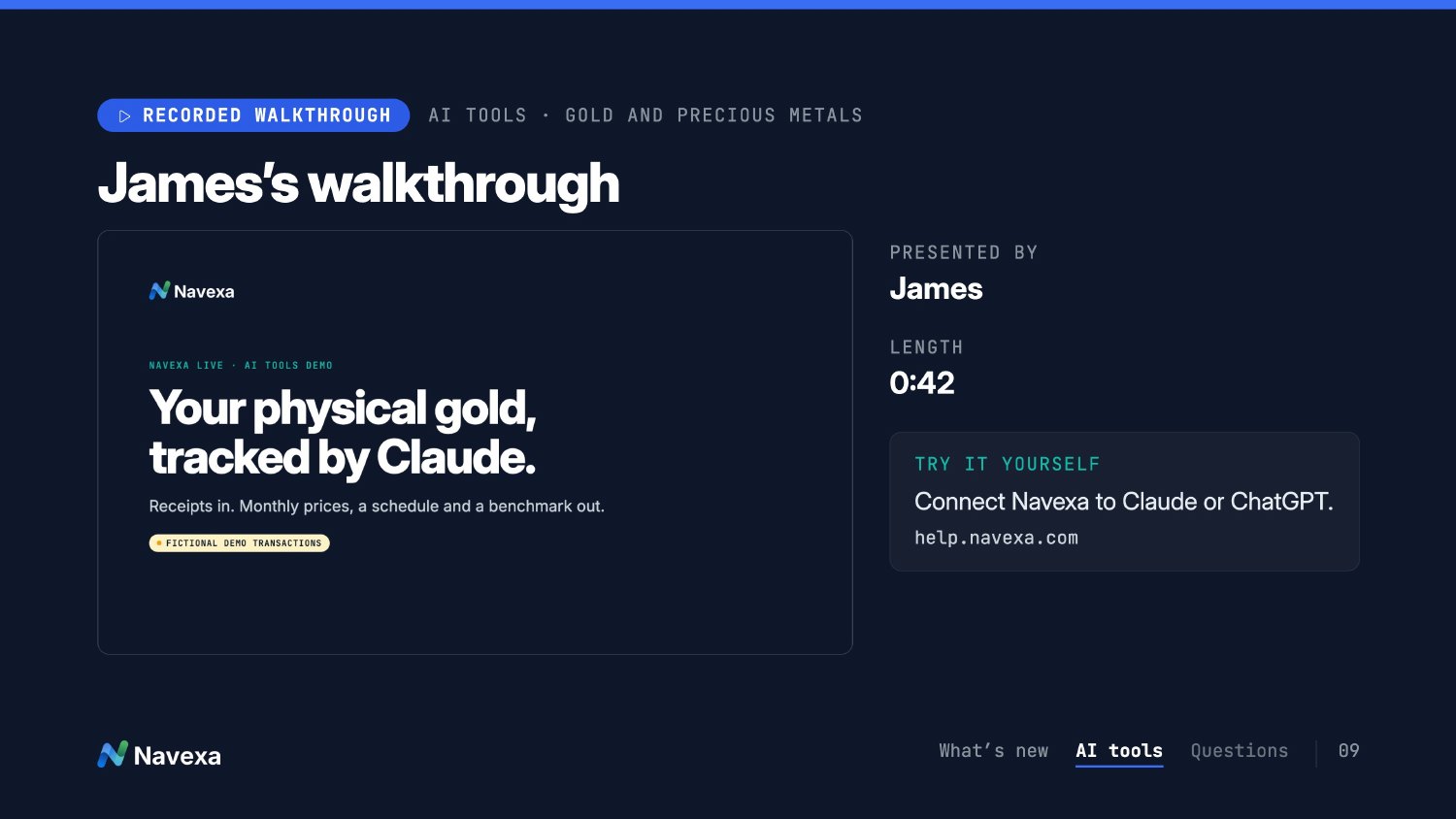
A question about automatic precious-metal prices led to James’s short gold walkthrough.
MCP stands for Model Context Protocol. It connects an external AI assistant, such as Claude or ChatGPT, to approved Navexa data and tools. Roi is built into Navexa; an MCP conversation takes place in the external assistant.
James’s illustrated example used fictional dealer receipts to explain a workflow:
Custom investments, dated prices and performance comparisons.
Open the video ↗James’s 42-second illustrated walkthrough uses fictional dealer receipts and transactions. The prices and comparison figures form part of the demonstration.
The walkthrough also illustrated scheduling future price updates through the external AI tool. Future updates need a suitable price source and a separately configured task.
At the time of the session, Navexa did not offer a native precious-metals price feed. This example used a custom investment with externally supplied prices. Check the price date, currency and unit of measurement before applying an update.
To set up the connection, follow Connect Navexa to Claude or ChatGPT. Review the requested access and your AI provider’s data settings before connecting.
One advance question described a common setup: a trading account pays for purchases, while dividends arrive in a different bank account.
James demonstrated the separate Sync Trades and Sync Income settings. These let you route eligible trade cash movements to one Navexa Cash Account and income movements to another. Check the from-dates and broker/source filters so each account receives the intended activity.
A Navexa Cash Account records cash movements. It does not provide a live connection to your bank. You can also import bank transactions from CSV or Excel, but check whether automation has already created the same movements before importing them again.
The step-by-step guides are Automating cash transactions and Tracking a bank account in Navexa.
For supported holdings, Navexa calculates most dividends from market data once the trade history is recorded. Review those entries against your statements and correct them where needed. ETF and managed-fund tax components can also require information from annual tax statements.
The income record and the cash movement are related records: check both the dividend or distribution and the Cash Account receiving its payment.
The advance questions also covered IBKR, USD holdings and returns measured in different currencies. For the connection itself, use the Interactive Brokers setup guide.
To examine what contributed to a return, Performance Breakdown separates capital growth, income and currency gain. Check the selected period and reporting currency when comparing figures.
The session did not settle the detailed questions about foreign-market fees and mixed-currency brokerage. Those need the actual transaction and confirmation reviewed before giving entry instructions.
Several questions were about structure: multiple trading accounts, different categories of holdings and seeing family portfolios together.
For two trading accounts belonging to the same owner or tax entity, the team explained that both can sit within one Navexa portfolio. Separate broker accounts do not, by themselves, require separate portfolios. Keep the ownership structure clear when setting up your records.
Custom Groups lets you assign holdings to categories you define, then use those categories on supported portfolio and reporting pages. Tom demonstrated creating categories and assigning several holdings at once. See How to create Custom Groups.
Portfolio Views combines selected portfolios for analysis while preserving their underlying records. All included portfolios must share the same base currency. Open Manage Portfolios → Views to create one.
A combined family view can help you examine the overall picture, but tax reports remain at the individual portfolio level. A View does not split joint ownership between people. Read Portfolio Views for the setup and limits.
A live question asked whether Roi resolved difficulties recording crypto transfers through the API. The test exposed a gap: the transfer did not produce all the expected matching details, including the fee. Tom and James said they would take the example to the developer. It was an unresolved issue at the end of the session.
For SUMM, James said there was no dedicated import option at the time and invited the customer to contact support so the file could be reviewed. The available import method depends on the exchange, wallet and file format.
The question was whether Navexa could allocate half of a joint portfolio’s income and capital gains to each owner’s individual reports. Tom said that automatic reporting split was not available at the time, and no delivery date was confirmed. Portfolio Views provides combined analysis, rather than that ownership allocation.
Viewers asked how to see overlapping holdings inside ETFs and a sector breakdown that includes their underlying investments. Tom described an exposure feature in testing. That was an update on work underway, rather than confirmation of a release date.
Near the end, Roi produced a portfolio heat map. Roi can also create Sankey charts. The brief follow-up used during the live session didn’t produce the intended result. A fuller request worked afterwards:
“Show me a Sankey chart of the returns of my portfolio.”
Name both the chart type and what you want it to show. The team has flagged the handling of shorter follow-up prompts for improvement.
Requests for bank connections and broader app improvements also came through.
Use the Navexa changelog to check what has shipped. On the feedback board, search for an existing suggestion before adding a new one. Posts are public, so leave out account details and portfolio data.
The full walkthrough of the ATO portal requested before the session was not covered. Navexa’s ATO MyTax report brings investment figures together against relevant myTax labels; it does not lodge your return or enter figures into the ATO portal.
Use The ATO myTax report guide to review the report and trace its figures back to supporting records. Check your statements and obtain tax advice where needed before lodging.
SESSION RESOURCES
Navexa Live · 28 October 2026
The 13-slide deck, including the product topics, MCP overview and support links.
Open the slides · Download the PDF


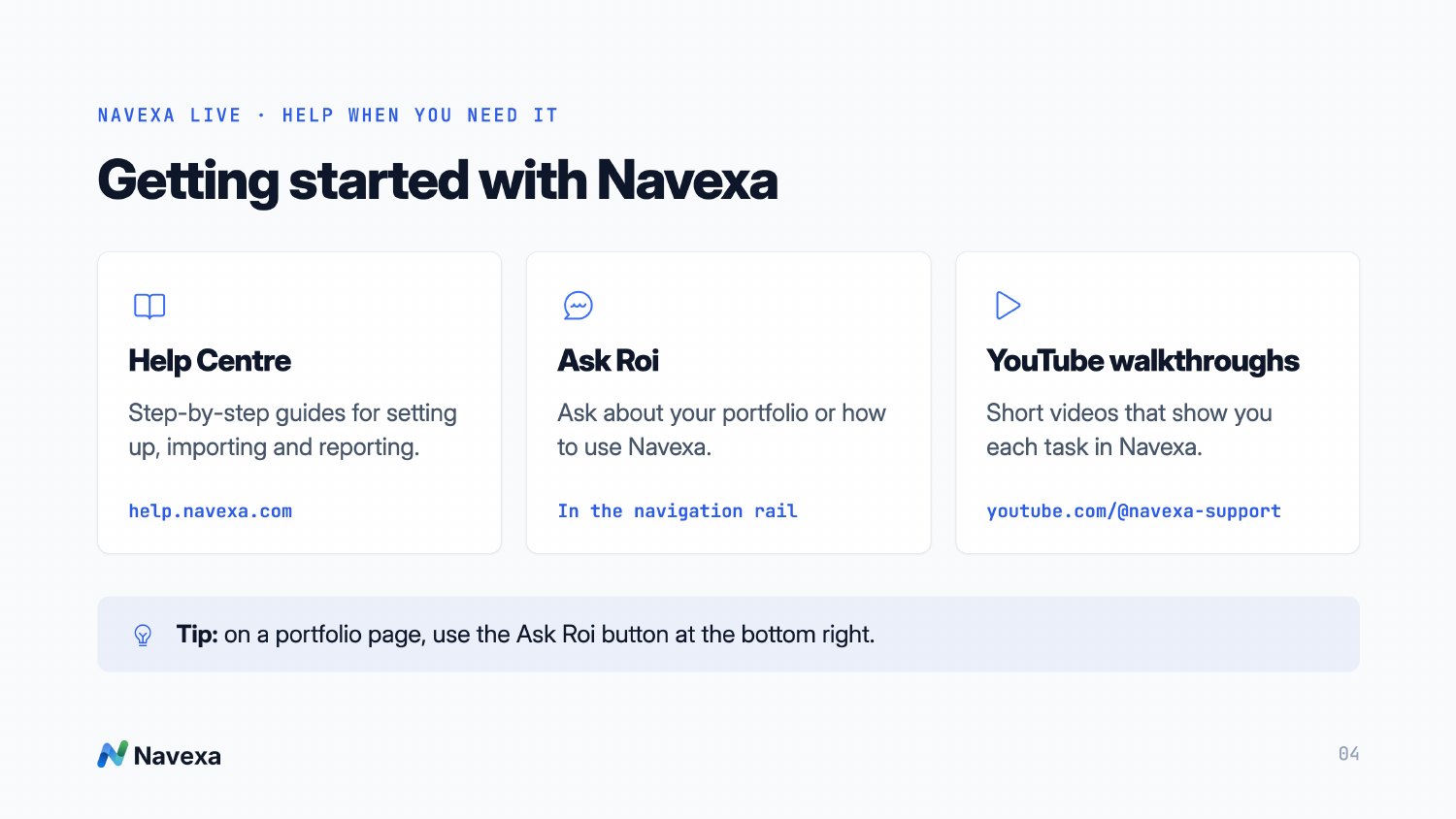




If you’re just getting started, the Help Centre and Navexa Support YouTube channel are the places to begin. For a question about the records in your portfolio, open Ask Roi and describe what you want to check.
This session and article provide product information, not financial or tax advice. Demonstration transactions are fictional. Investments shown are examples, not recommendations.
Track your portfolio in Navexa
Free 14-day trial. No credit card required.
Try Navexa Free →Join Tom and James for weekly Navexa demos and Q&A. Our first 40-minute session is on 28 October at 1 pm AEDT. Register, submit a question and receive the recording.
Watch my Marcus Today webinar on investment tax records, AMMA statements, cost base adjustments and parcel selection, with slides and audience questions.
Tom Wilson shares the story behind Navexa’s Roi reveal with Owen Rask. Watch the workshop replay, explore Scenarios and catch the audience’s questions.