Navexa Live: Portfolio X-Ray and Roi skills
Watch the 4 November Navexa Live replay: a Portfolio X-Ray preview, reusable Roi skills, James’s Claude example and answers about dividends, DRP and share registries.
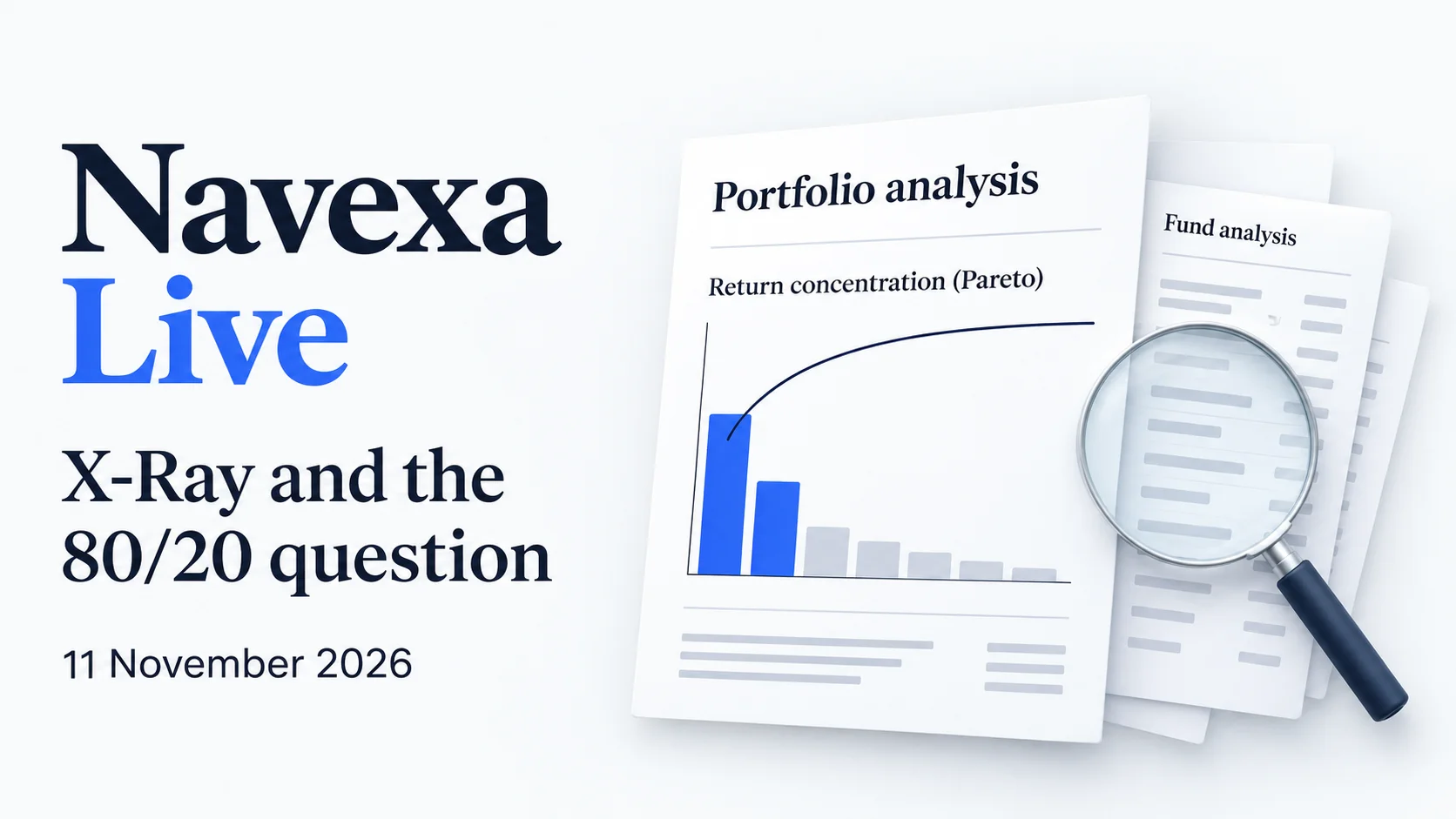
You can hold Nvidia through several ETFs without owning a single Nvidia share directly. So how do you work out how much of your portfolio is invested in it?
That was one of the questions James and I explored in Navexa Live on 11 November. We looked inside our demo portfolio with Portfolio X-Ray, asked Roi about ETF overlap and tried the latest mobile app updates. James also used Claude to explore how much of the portfolio’s return came from just two holdings.
I’ve included the replay, the prompts we used, James’s short demonstration and all 13 slides below. You can follow along with your own portfolio or jump to a question that interests you.
Navexa Live with Tom & James. Portfolio X-Ray, the 80/20 question and your portfolio questions.
Open on YouTube ↗Recorded 11 November 2026 · Approximately 42 minutes.
Read the highlights below, or use the chapter links to jump to a topic.
Jump to a topic in the replay
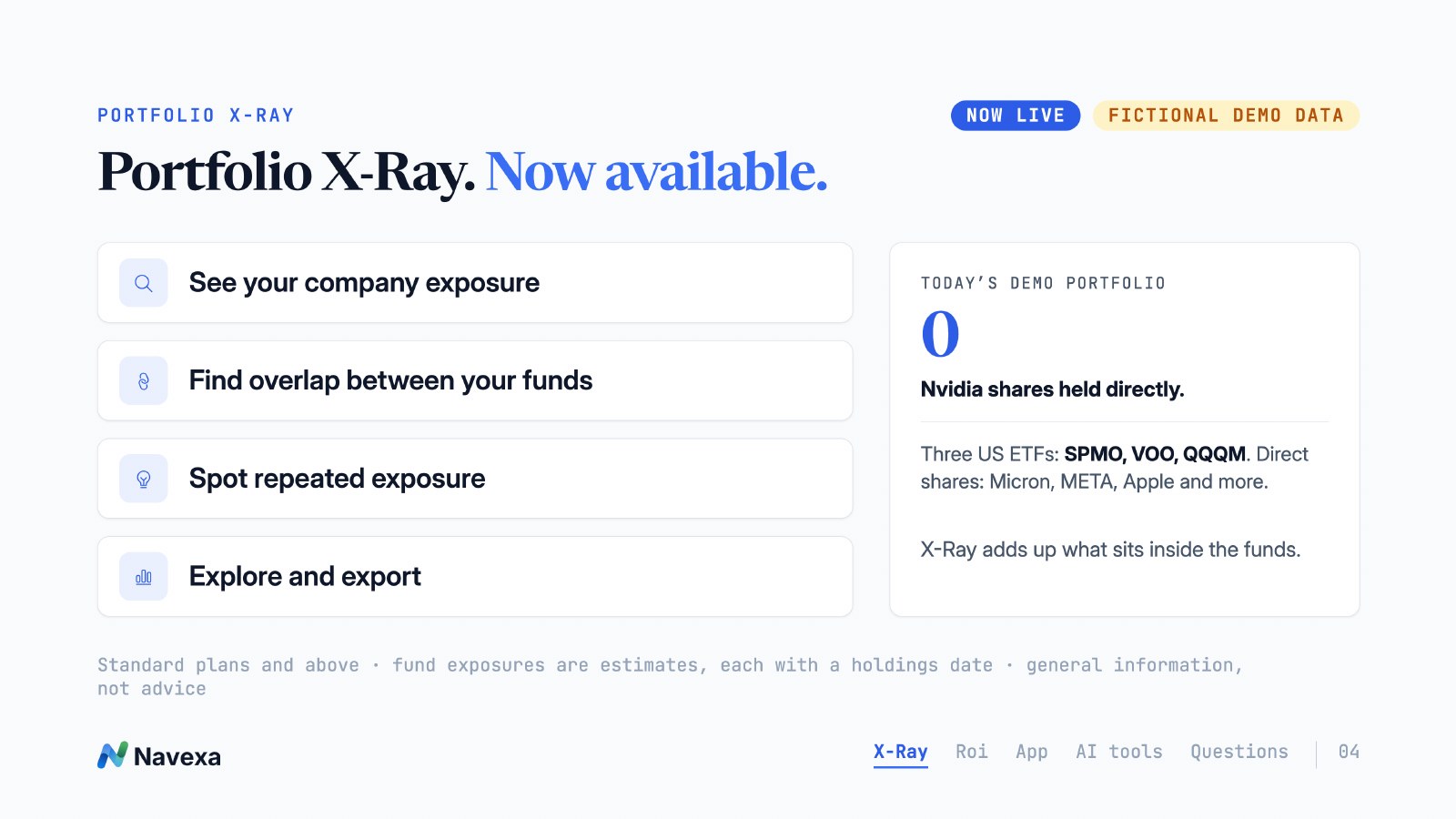
Portfolio X-Ray lets you look through supported ETFs and funds to see the companies they hold. It brings those fund investments together with any shares you own directly, so you can see your estimated total investment in each company. That’s your combined exposure.
Last week we gave you a preview. This week I showed it in the platform, using our fictional webinar portfolio.
There were no Nvidia shares in that portfolio’s direct holdings. But when we opened X-Ray, Nvidia appeared because it was held inside funds including VOO and QQQM. Owning both funds meant we held Nvidia in more than one place.
To explore your own portfolio:
You can also group the chart by sector, country, currency or investment type. That lets you take the same investigation a little further, from a company such as Nvidia to the sectors or countries represented across your investments.
As you explore, check the holdings dates. Fund exposure is estimated from the holdings data available, and each fund may have a different reporting date. The underlying holdings aren’t necessarily updated daily. If data is missing or marked unknown, that doesn’t mean you have no exposure.
Portfolio X-Ray is available on Standard plans and above, as shown in this webinar.
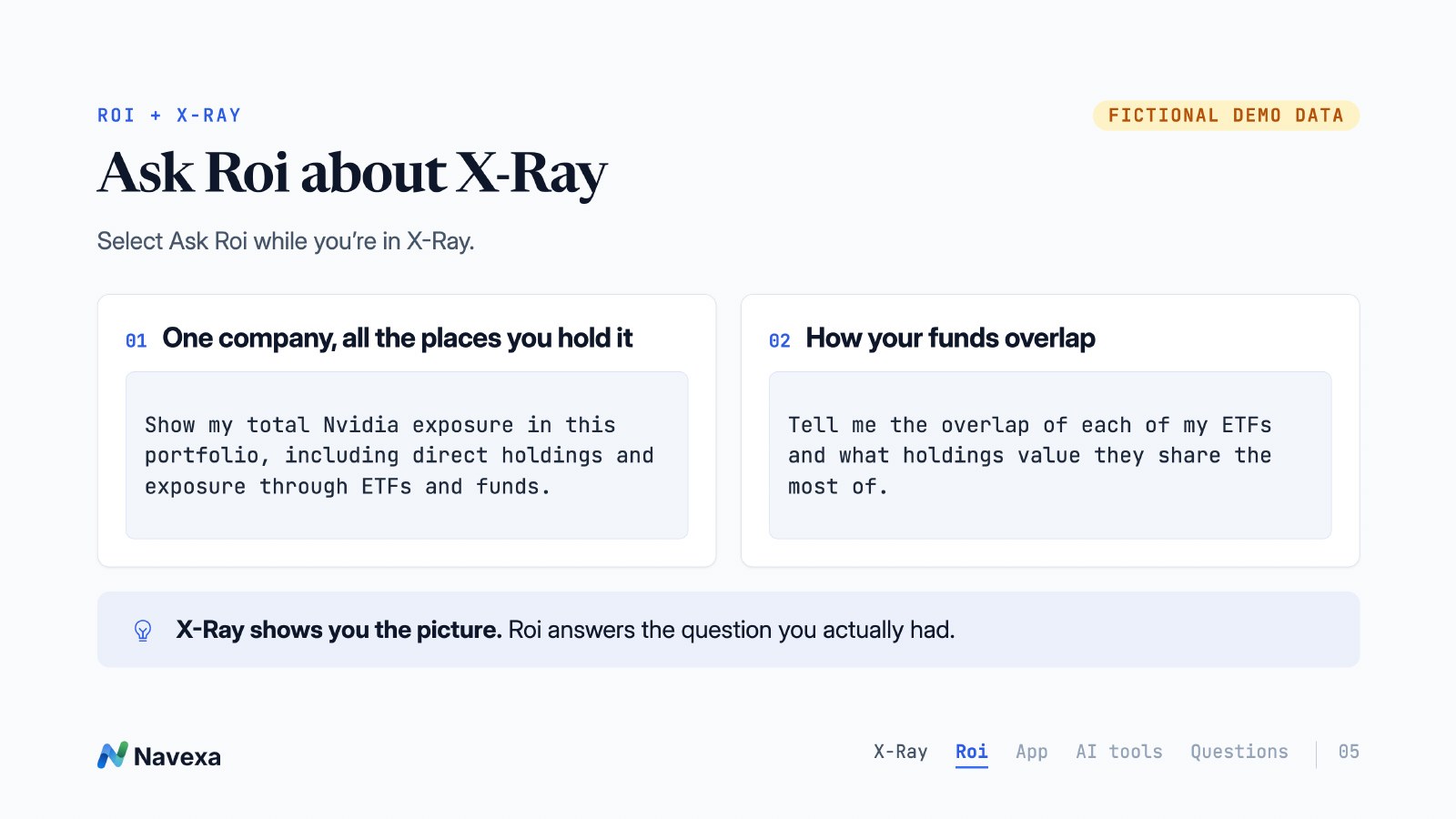
Once you’ve found a company or fund you want to understand, select Ask Roi in X-Ray and put your question into words. Here are the two prompts we used:
You can keep refining the answer. James asked Roi to put the overlap into a table, then asked which holdings the ETFs shared. If you’re looking for particular figures or a particular format, include that in your question.
Roi’s presentation varied between answers during the demo, so you may need a follow-up to get the detail you want. Check important figures against X-Ray and your records.
We also tried dictating the questions. If you use dictation, read the text before sending it, particularly company names and ticker symbols.
James explored another question: how much of the portfolio’s return came from a small number of holdings?
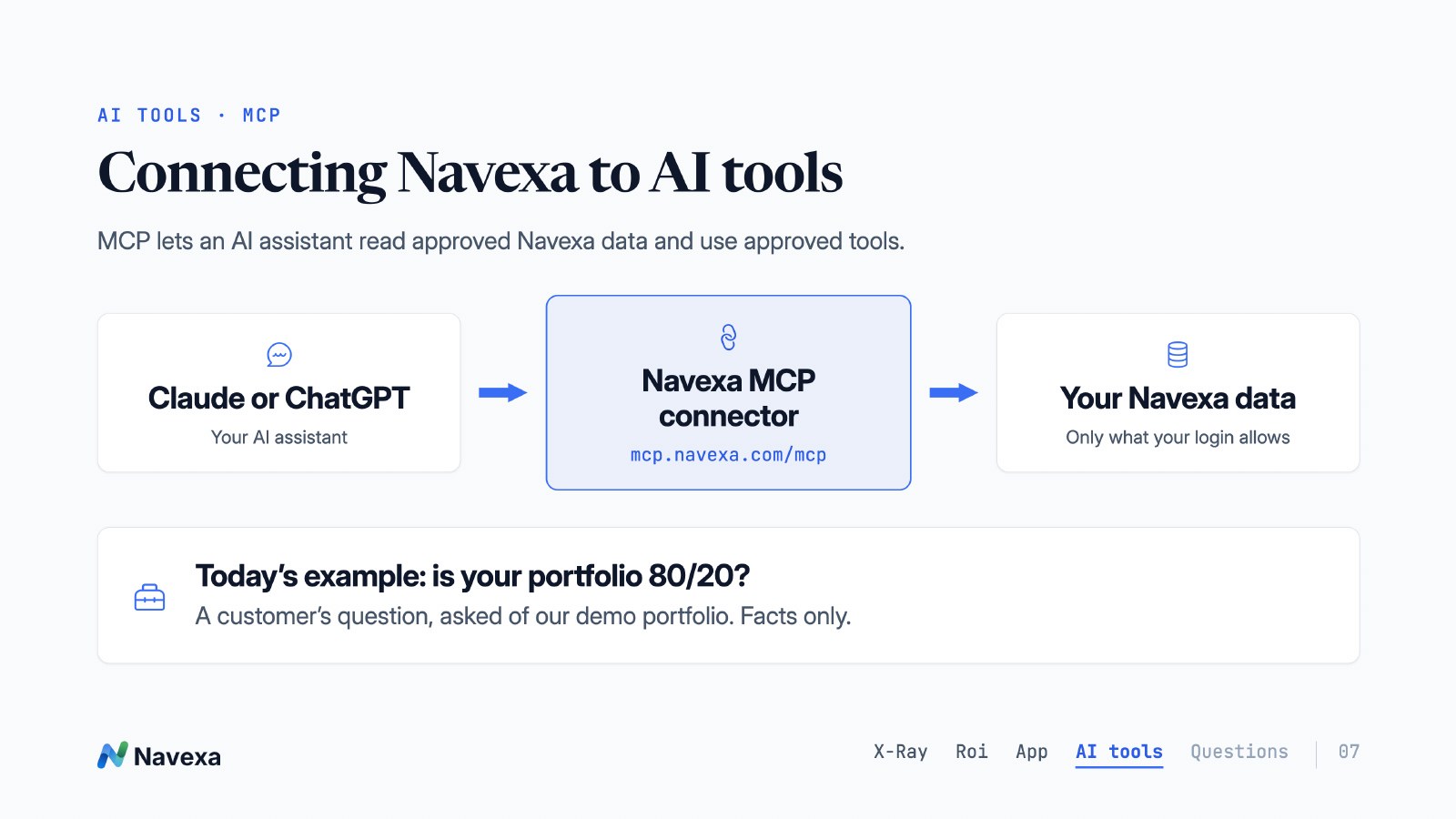
He connected Claude to Navexa through the MCP connector and asked it to examine our fictional portfolio. MCP lets the AI assistant use approved Navexa data and tools, subject to the access available through your login. In this example, James used it to analyse past returns.
The short video below shows the question and the resulting chart.
From the question to a return-contribution chart, using a fictional demo portfolio.
Open the video ↗38-second silent illustrated MCP example. Fictional portfolio data; historical contribution analysis, not a forecast or recommendation.
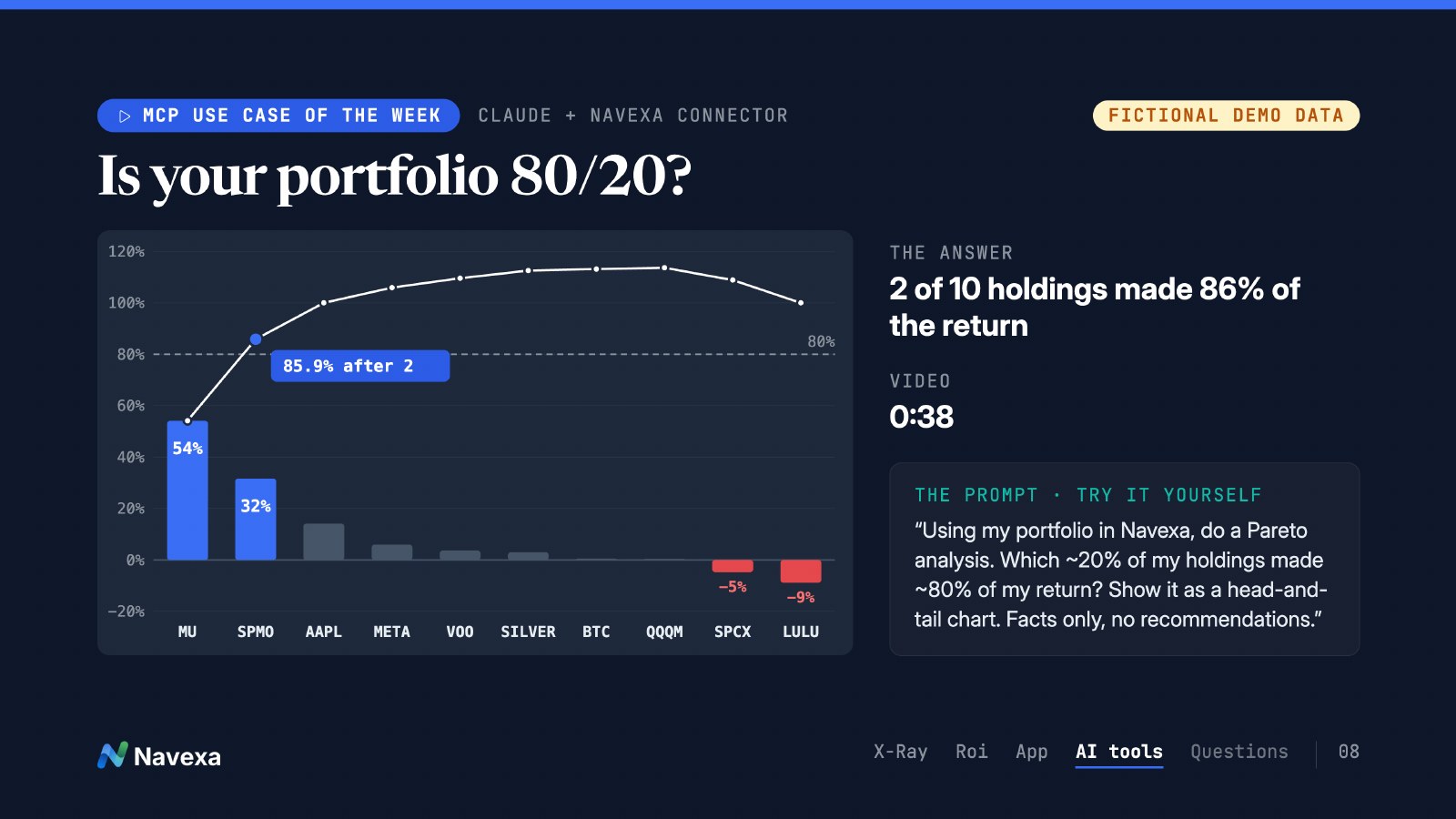
Here’s the prompt from the session:
In this example, two of the ten holdings produced about 86% of the portfolio’s total return. Those two holdings also represented 52% of its value.
That distinction matters. Two out of ten is 20% of the holdings by count. The amount invested in those holdings was just over half the portfolio. Keep both figures in mind when reading an “80/20” result; your own portfolio may have a very different pattern.
You’ll also see negative contributors in the chart. Gains from some holdings can add up to more than 100% of the net return because losses elsewhere reduce the final total. The video shows that in the holdings, sector and country breakdowns.
You can use this analysis to explore where your return came from over a period. X-Ray helps you explore what you own, including the companies inside your funds. Check the calculation period and figures when using the AI output, and treat the example as an explanation of past results rather than a recommendation to change your investments.
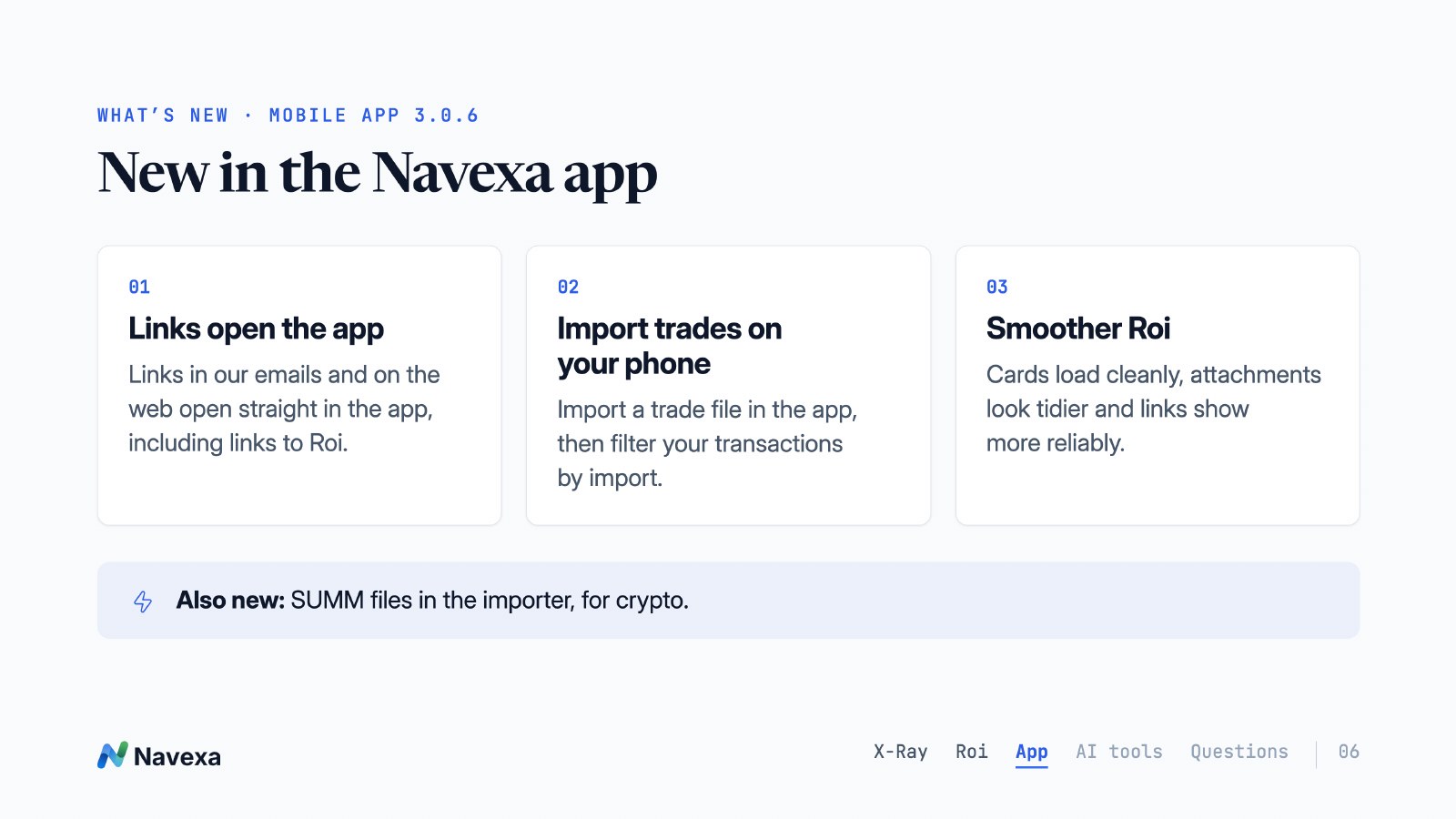
If you use Navexa on your phone, here are the updates we covered for version 3.0.6:
We also opened Portfolio X-Ray and Roi on the phone, so you can see how to use them when you’re away from your computer. The slides include another importer update too: support for SUMM files for crypto records.
You can download or update the app here:


Start with what you want to see together. We talked through the distinction between trading accounts and the portfolios used to organise them. I also covered Portfolio Views, which let you bring portfolios together to view their combined performance.
Joint ownership needs a separate look, particularly when it comes to tax reporting. We didn’t confirm a new joint-owner tax-reporting feature during the webinar. If you’re unsure how to set up your records, contact us for help with the Navexa setup and check the ownership and tax treatment with your tax professional.
You can select holdings in bulk on the custom-groups screen and assign them to groups. James also reported testing a group change through Roi.
One suggestion was to let you drag holdings straight from one group to another on the portfolio screen. That was an improvement request raised during the webinar.
Choose Add holdings to find the file-import options. The broker instructions explain where to get the appropriate export, and there’s a template you can use when preparing your own spreadsheet. I also showed the option for importing PDF contract notes.
Once you’ve added a file, review the import results and check the holdings and transactions it’s created.
You can also import supported SUMM files for crypto records. James tried changing the broker/exchange field through Roi too, but that change wasn’t supported in his test.
We mentioned bulk price uploads for custom investments as an upcoming update. We were still checking availability during the webinar, so that part needed confirmation.
There were also questions about ETF distributions, which financial year income belongs to, income percentages and whether tax reporting had a cash-versus-accrual toggle. We didn’t confirm that toggle, and these questions still needed follow-up at the end of the session.
If you’re looking at a particular report, send us its name and date range so we can help you check what it shows. Your tax professional can help confirm the relevant tax treatment.
SESSION RESOURCES
Navexa Live · 11 November 2026
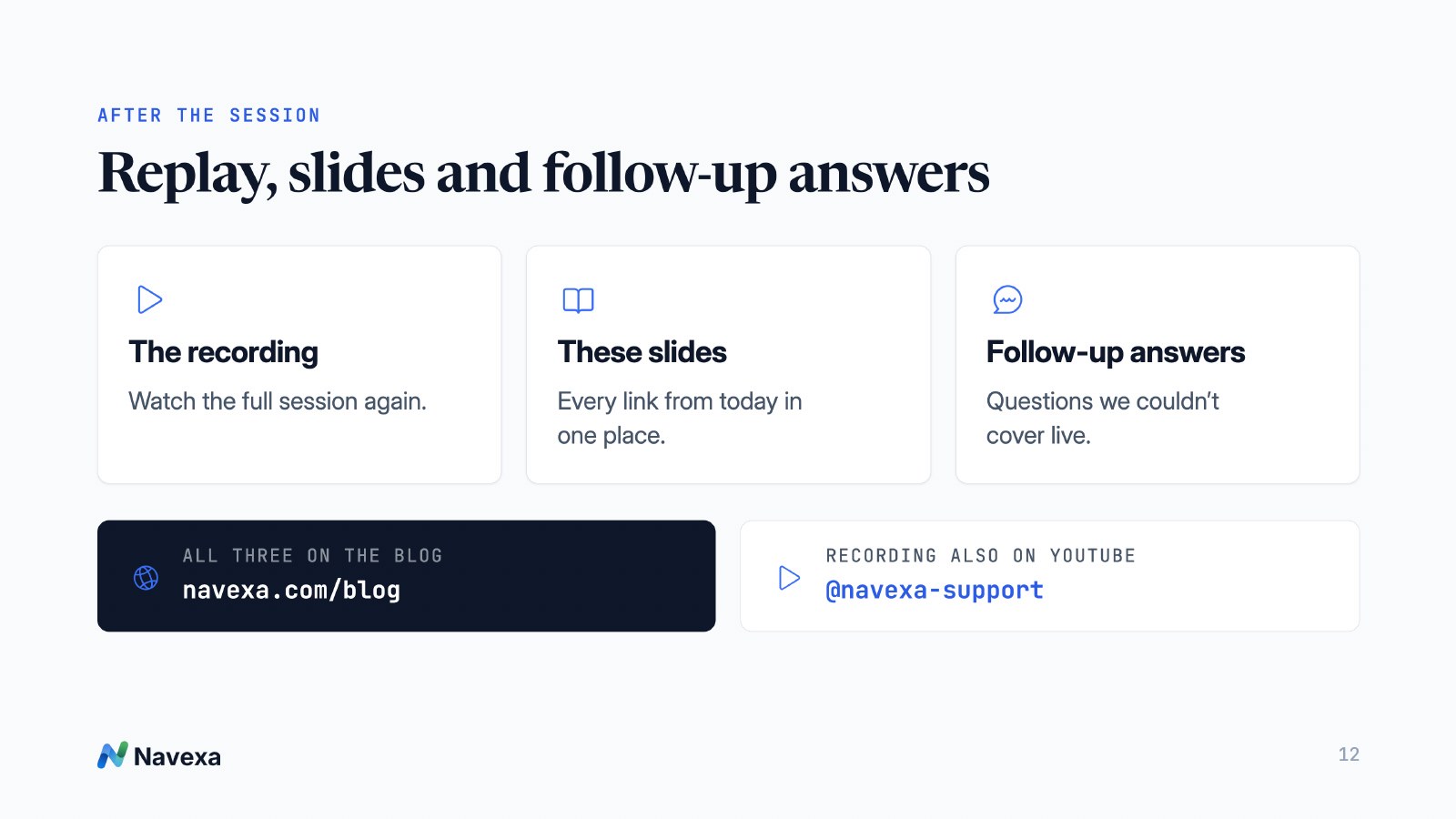
The 13-slide deck, including X-Ray, Roi prompts, mobile updates, the Pareto example and support links.
Open the slides · Download the PDF
Try opening X-Ray in your own portfolio and looking inside one of your funds. You might find a company held in several places, or a sector allocation you hadn’t noticed from your holdings list.
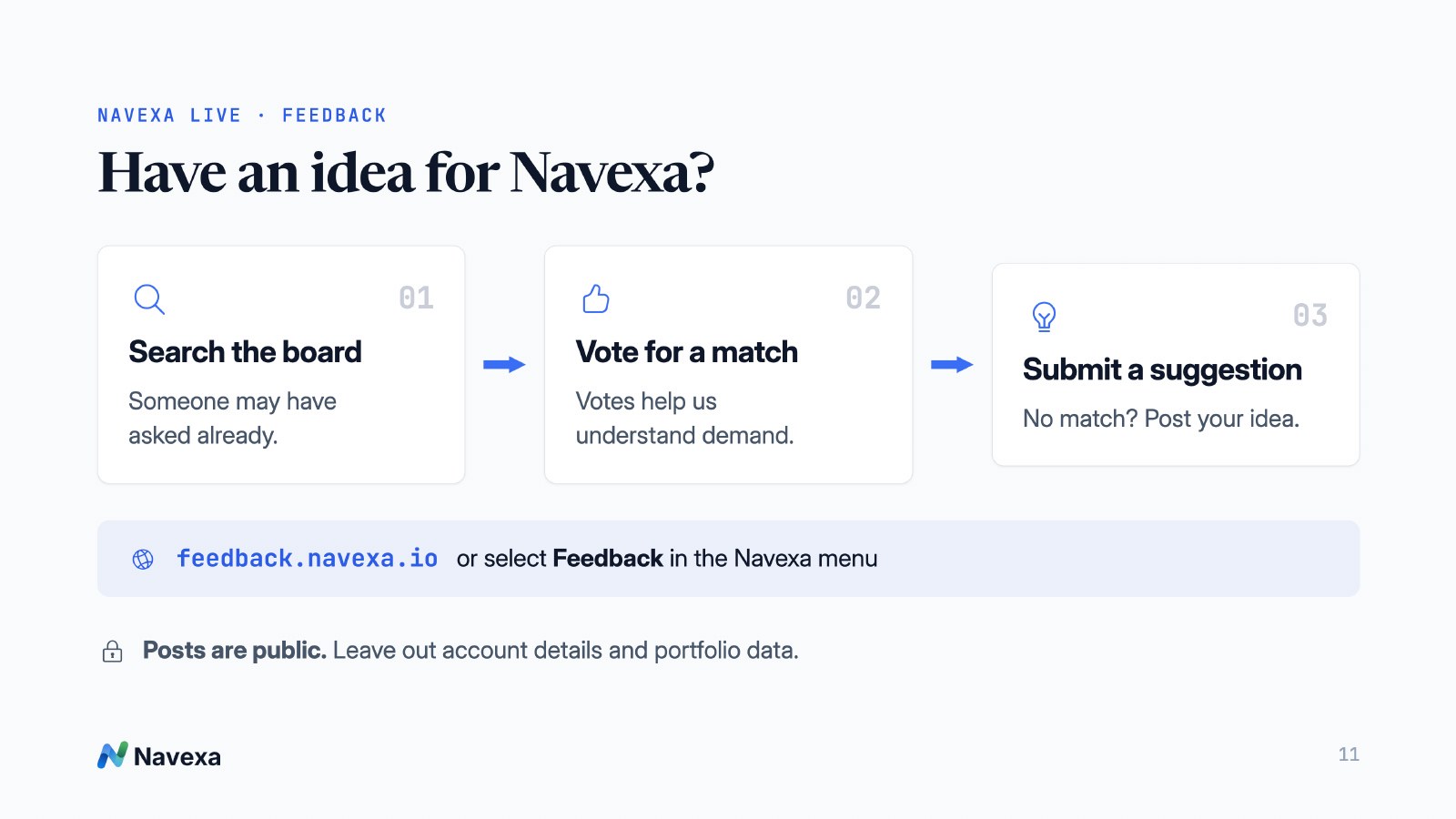
If a fund’s data is unavailable or you have an idea for an improvement, have a look at the feedback board. Search for an existing request before adding a new one, and keep your account details and private portfolio information out of public posts.
For help with your account, contact us or visit the Help Centre. The 4 November recap also has our earlier X-Ray preview and examples of using Roi skills.
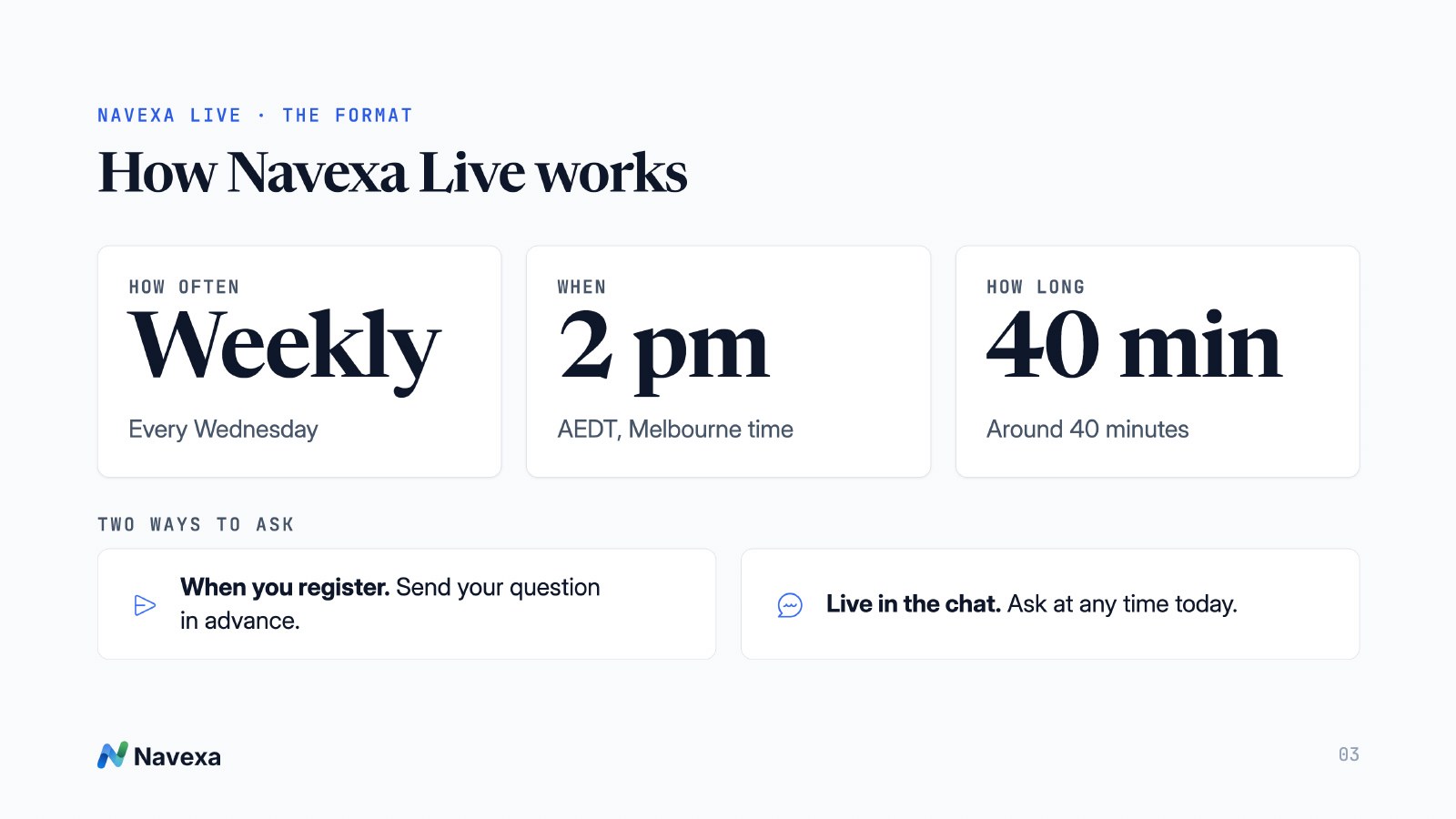
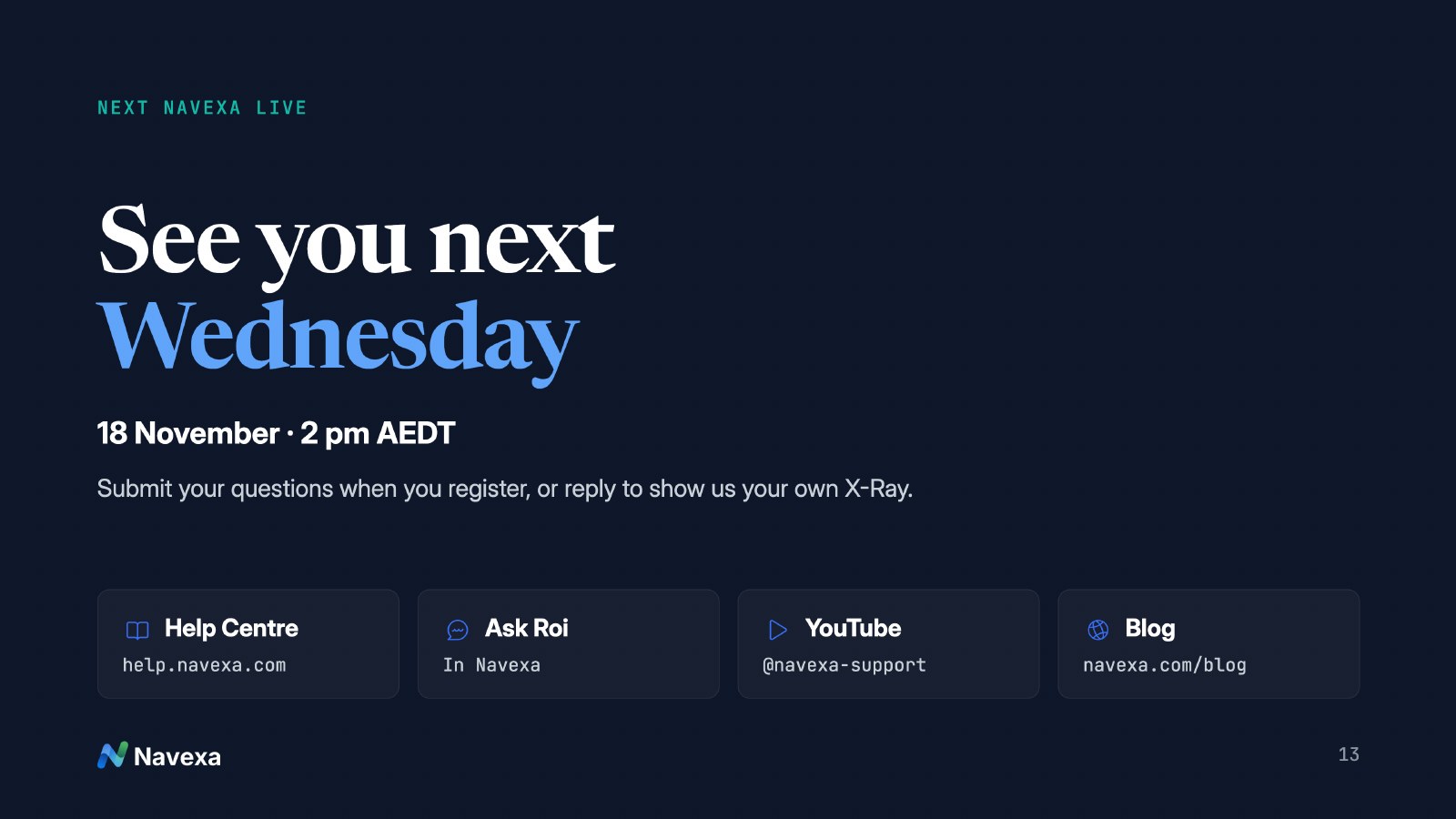
James and I will be back on Wednesday, 18 November 2026, from 2–2:40 pm AEDT (Melbourne–Sydney time).
Bring a question, or tell us something you found when you looked inside your portfolio with X-Ray.
Register for 18 November and send us your question. Please register for the new session even if you joined us this week.
This session and article provide product information, not financial or tax advice. Demonstration portfolios use fictional transactions. Investments shown are examples, not recommendations. AI answers can contain mistakes; check important figures against your records.
Track your portfolio in Navexa
Free 14-day trial. No credit card required.
Try Navexa Free →Watch the 4 November Navexa Live replay: a Portfolio X-Ray preview, reusable Roi skills, James’s Claude example and answers about dividends, DRP and share registries.
Join Tom and James for weekly Navexa demos and Q&A. The next session is on 18 November at 2 pm AEDT. Register, submit a question and receive the recording.
Watch the first Navexa Live with Tom and James: Roi, Scenarios, gold tracking through MCP, cash accounts and answers to your portfolio questions.