Navexa Live: Roi, Scenarios and your questions
Watch the first Navexa Live with Tom and James: Roi, Scenarios, gold tracking through MCP, cash accounts and answers to your portfolio questions.
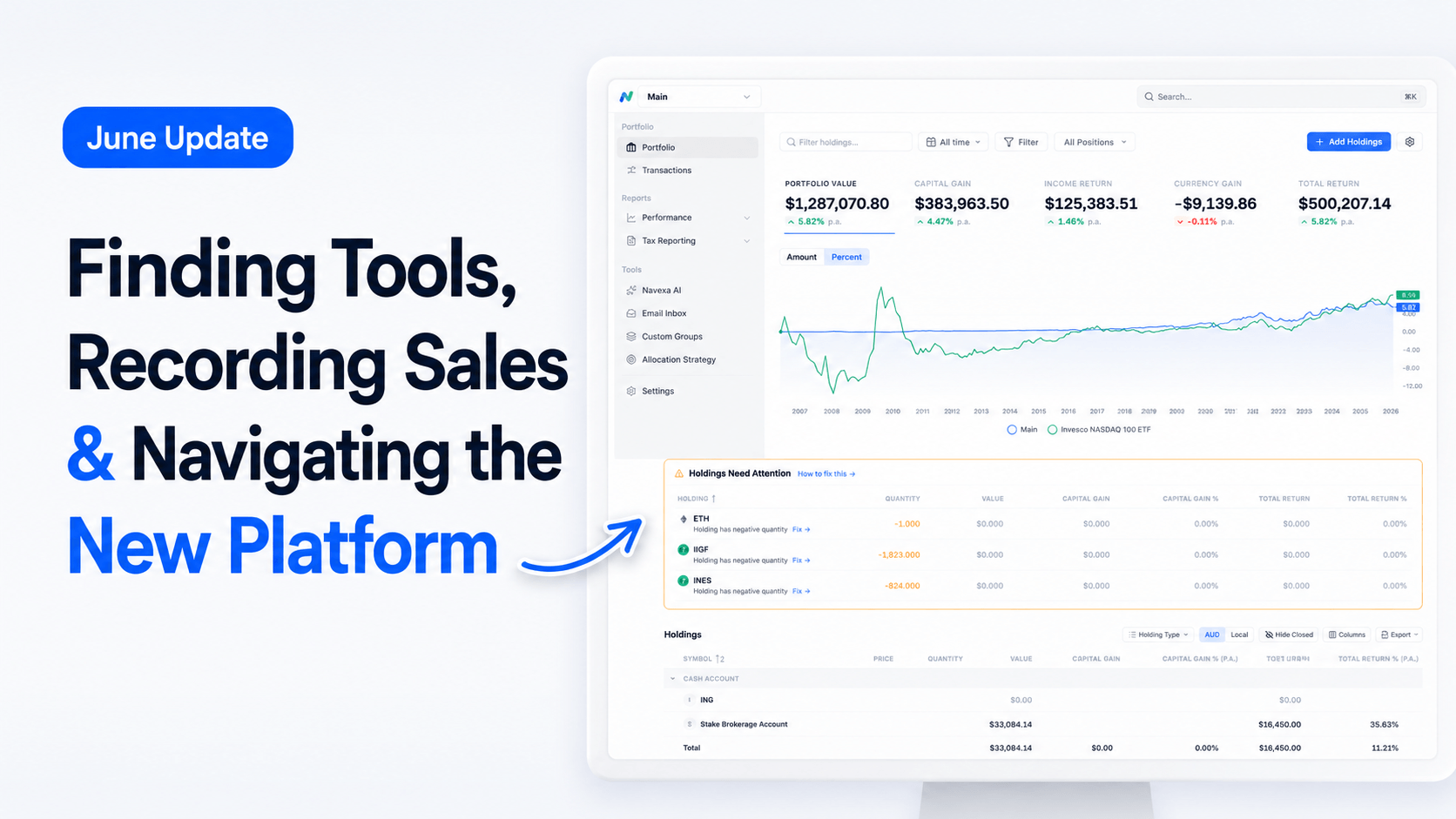
This month’s Navexa update is based on feedback from customers who used both the old Navexa platform and the new one.
We’re currently running a short survey inside Navexa. It closes on 21 June, and the feedback so far has been constructive and useful.
A lot of users have told us the new platform feels cleaner and easier to use, which is great to hear. But some of the most helpful feedback has been around finding tools, reports and workflows that may have moved compared with the old platform.
So for this June update, we’re focusing on a few practical things customers asked about:
One piece of feedback we received was that exports were harder to find in the new platform.
The main thing to know is simple:
If a page supports exporting, the export option should appear on that page, usually near the top with the other page controls.
For example, on the portfolio page, you may be able to export your holdings. Some pages allow export to Excel or PDF. Other reports have their own export options depending on what data is shown.
Not every page has an export option. Some pages show data that does not translate neatly into a spreadsheet or PDF.
But where export is available, it should be shown in a consistent place: near the top of the page, alongside the other controls for that page.
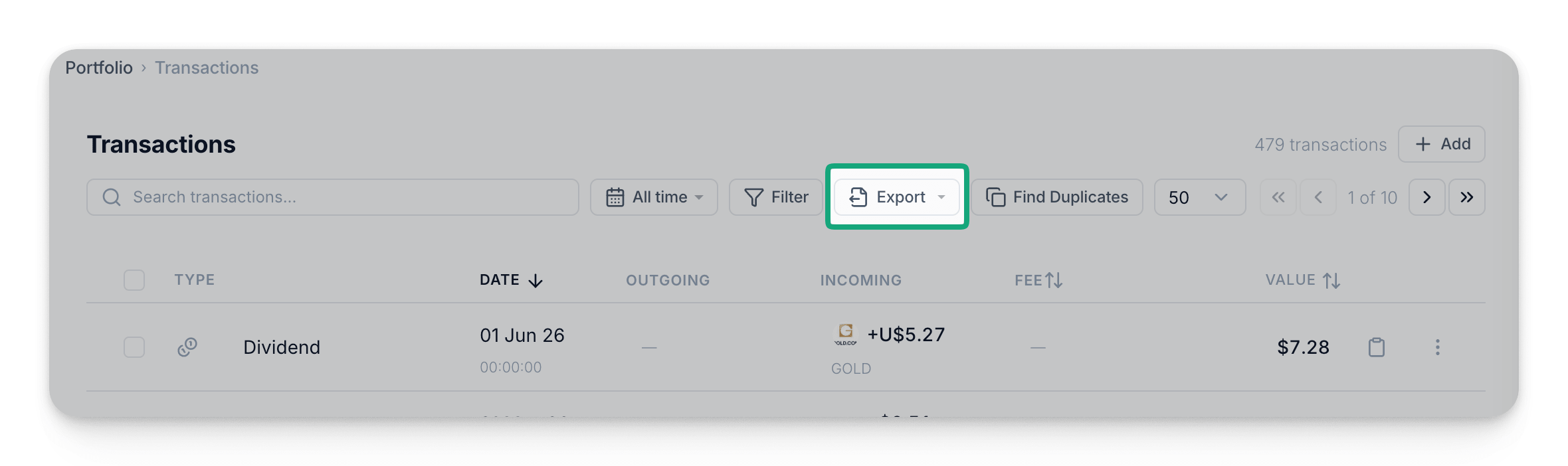
You can also export from the Transactions page. This is useful if you want to export all transactions, or filter the page first and export a more specific set of records, such as dividends, a particular holding, exchange or group.
One thing that can make the new platform easier to use is understanding how it is arranged.
At the top level, you have your Navexa account.
Inside your account, you may have one or more portfolios.
Inside each portfolio, you have your holdings.
.png)
A simple way to think about it:
So if you want to add a new investment, start from the portfolio.
If you want to add something that happened to an existing investment, open that holding first.
Another piece of feedback we received was that recording a sale was not always obvious.
The easiest way to think about it is this:
A sale is recorded as a sell trade inside the holding’s trade history.
For example, if you want to record a sale for BHP, open your BHP holding first.
From the holding page:
For shares and ETFs, the available trade types may include buys, sells, splits, bonus issues, consolidations, cancellations, returns of capital, cost base adjustments and opening balances.
You do not need to use all of these for a normal sale.
For a standard sale, choose Sell.
The Trades tab and Income tab serve different purposes.
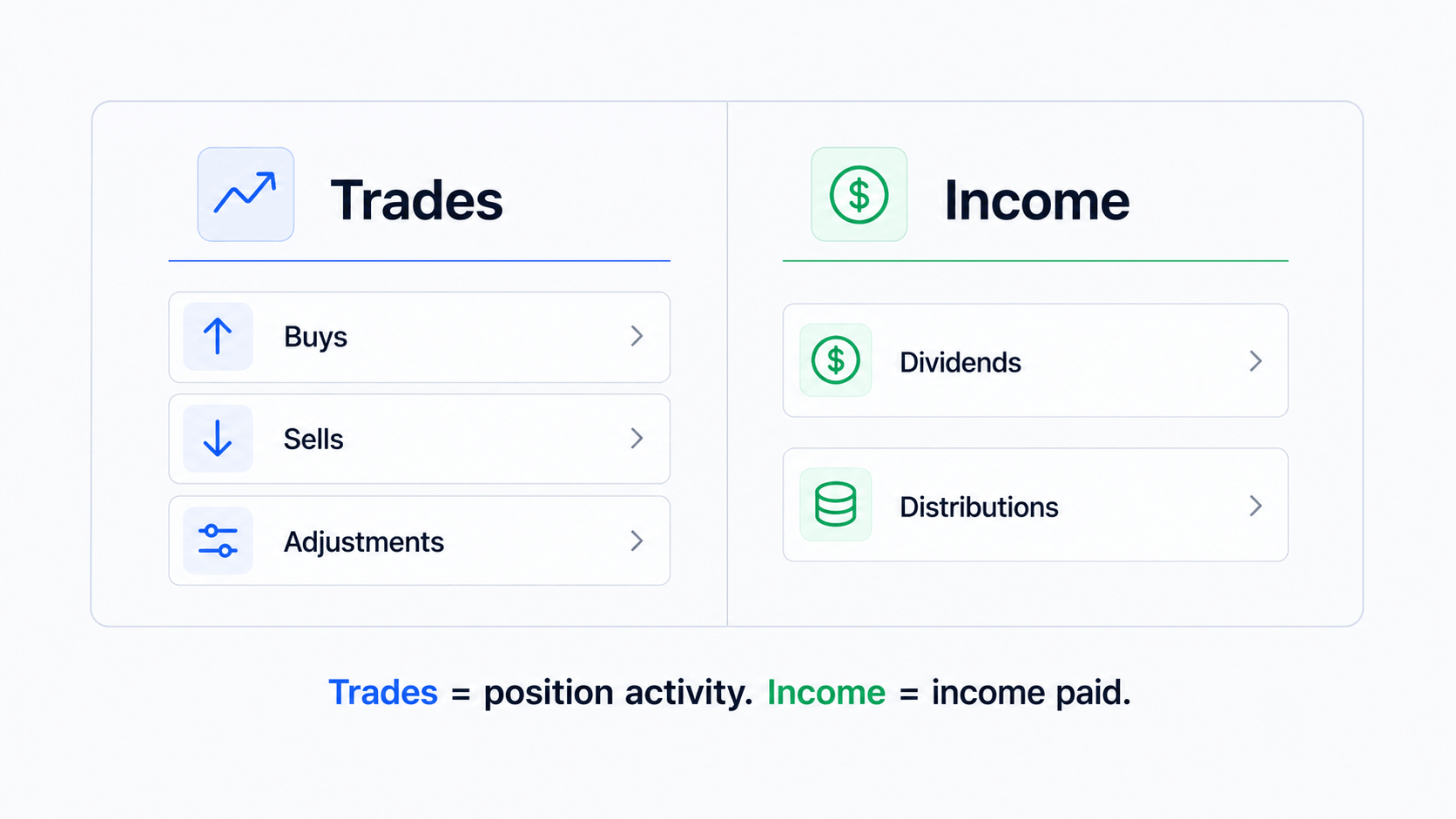
The Trades tab is for activity that affects your position in the holding.
That may include:
If the transaction changes the number of units you hold, or affects the holding’s position history, start with the Trades tab.
The Income tab is for income connected to that holding.
For shares and ETFs, this is usually where you review or add dividends and distributions.
For example, if you want to add a dividend for a share holding, open the holding, go to Income, and select Add dividend.
The simple rule is:
Trades are for position activity. Income is for income paid by the holding.
The Transactions page is another way to add or review activity across your portfolio.
From the Transactions page, select Add.
From there, you can choose what type of transaction you want to add, such as:
If you choose stock or security, Navexa will then ask whether you want to add a trade or a dividend.
This path gives you more flexibility, but it can involve more steps because you need to choose the transaction type and then search for the relevant holding.
For simple holding-specific actions, it is usually easier to start from the holding itself.
Another area mentioned in the survey was the Income Calendar.
The Income Calendar is available from the left-hand navigation menu under the income area.
It lets you review estimated upcoming income across your portfolio, rather than opening each holding one by one.
You can also use the search box at the top of the left-hand menu to find menu items quickly.
For example, search for “Income”, and you should see related pages such as Income Calendar and Income Breakdown.
This search box is useful if you are still getting used to the new navigation.
Tax reports can be found from the left-hand menu under Tax Reporting.
From there, you can access reports such as:
You can also use the search box at the top of the menu to search for specific reports.
For example, if you search for “ATO”, you can quickly find the ATO MyTax report.
If you are preparing for tax time, the Tax Reporting section is the main place to start.
Some users prefer more screen space when reviewing reports.
You can collapse the left-hand sidebar by using the hide sidebar control at the bottom of the menu.
This gives you more space for the main page content.
You can open the sidebar again when needed, and pin it back if you prefer it to stay visible.
This can be useful if you are working on a smaller screen, or if you prefer a cleaner view while reviewing detailed reports.
If Navexa shows that dividends need attention, a good place to check is Tax Readiness.
In many cases, dividends need attention because they have not yet been confirmed.
In other cases, there may be an issue with the dividend record. For example, a dividend may have been recorded for a period where Navexa cannot see that you held the position.
From Tax Readiness, you can review the items that need attention before moving on to final tax reports.
You can also open the relevant holding directly, go to the Income tab, and review the income records for that holding.
If a dividend needs to be confirmed, check it against the relevant documentation before confirming it in Navexa.
You can switch between light and dark mode from your account settings.
Go to the top-right area of the platform, open your account settings, then choose the display mode you prefer.
You can switch back at any time.
This is a small setting, but it can make the platform easier to work with depending on your preference and screen setup.
We appreciate everyone who has completed the survey so far.
If you used both the old Navexa platform and the new Navexa platform, please add your feedback before the survey closes on 21 June.
Specific feedback is the most useful.
For example:
That kind of feedback helps us improve the platform and create clearer help content.
You can also send feedback through the chat in the bottom-right corner of Navexa, or visit feedback.navexa.io.
We’re continuing to improve the platform based on customer feedback, especially around workflows, reporting, tax readiness and portfolio visibility.
If a page supports exporting, the export option should appear directly on that page, usually near the top with the other page controls.
Open the holding, go to the Trades tab, select Add trade, then choose Sell.
Trades are for position activity, such as buys, sells, transfers and adjustments. Income is for income records connected to the holding, such as dividends and distributions.
You can find it from the left-hand menu under the income area. You can also use the menu search box and search for “Income Calendar”.
Tax reports are available under Tax Reporting in the left-hand menu. You can also use the menu search box to search for a specific report, such as ATO MyTax or Capital Gains Tax.
Open your account settings from the top-right area of the platform, then choose your preferred display mode.
No. Navexa provides portfolio tracking and reporting tools. It does not provide personal financial, legal or tax advice.
Disclaimer: This article is general information only. Navexa provides portfolio tracking and reporting tools, but does not provide personal financial, legal or tax advice. Platform features and plan inclusions may change, so check the latest Navexa information before relying on feature availability.
Track your portfolio in Navexa
Free 14-day trial. No credit card required.
Try Navexa Free →Watch the first Navexa Live with Tom and James: Roi, Scenarios, gold tracking through MCP, cash accounts and answers to your portfolio questions.
Join Tom and James for weekly Navexa demos and Q&A. Our first 40-minute session is on 28 October at 1 pm AEDT. Register, submit a question and receive the recording.
Watch my Marcus Today webinar on investment tax records, AMMA statements, cost base adjustments and parcel selection, with slides and audience questions.