
Watch our getting started webinar, follow along with the slides and get your investment history into shape.
Getting started with Navexa
Portfolio setup, live imports and your questions answered.
Prefer to read? Download the slides or use the recap below.
Take the slides with you
The original 24-page webinar presentation. Read at your own pace or keep it beside Navexa as you work.
Read the slides in this article
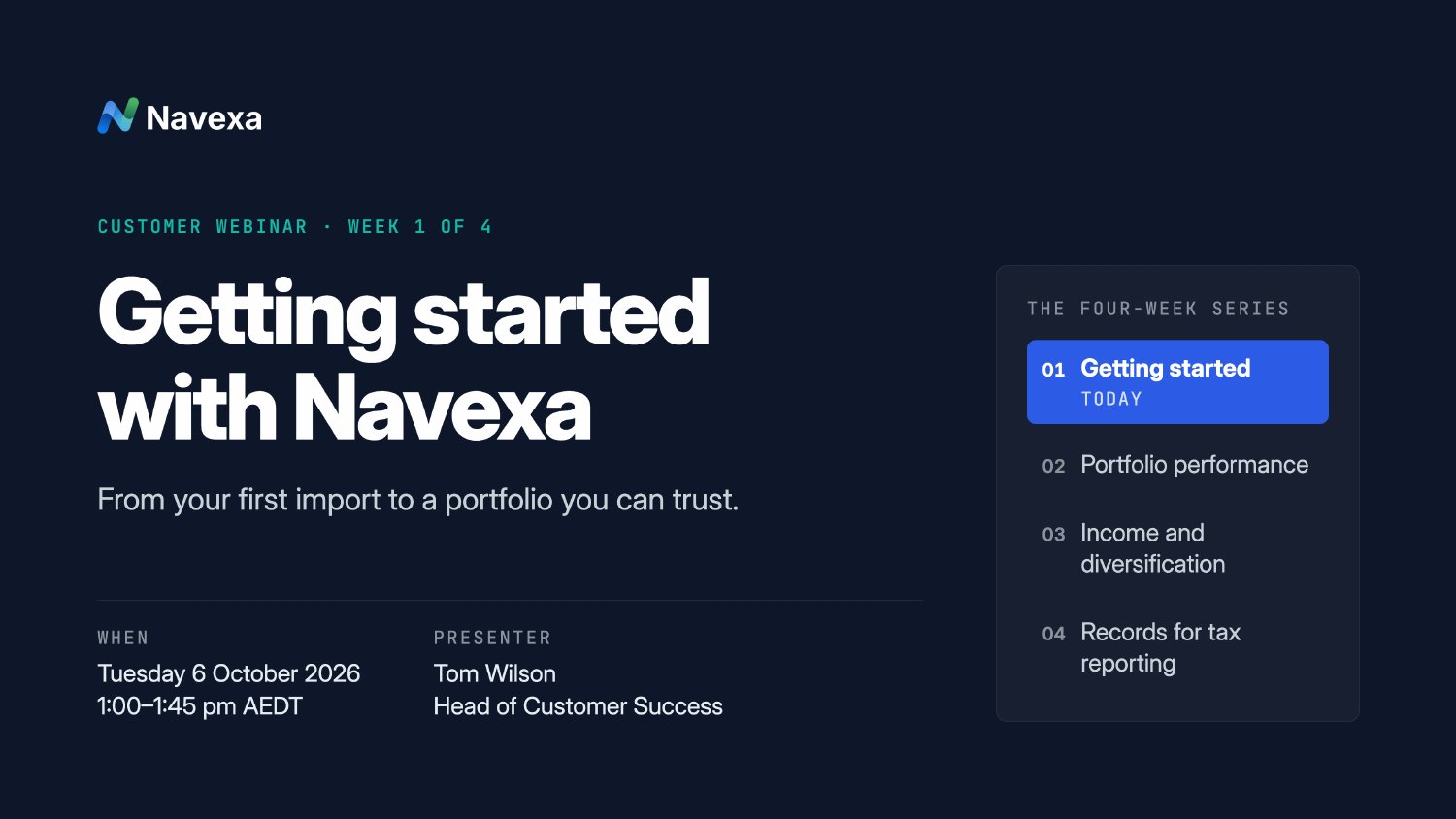
These slides are rendered from the original PDF. Open the complete PDF for searchable text.
Getting your investments into Navexa is the first step. Checking that the history adds up gives you a portfolio you can rely on.
In our first customer webinar, I walked through setting up a portfolio, importing investment history, fixing missing trades and keeping records current. We also covered questions about dividends, property tracking and the Soul Patts and Brickworks merger.
Start with who owns the investments
You might use two brokers for your personal investments. Those holdings can sit together in one Navexa portfolio. Investments owned by a separate entity, such as an SMSF, trust or company, will usually belong in their own portfolio.
Organising this at the start makes reporting easier later. Splitting one owner’s shares and crypto into separate portfolios can leave you combining records when you want a complete picture.
- Portfolio: A collection of investments.
- Holding: An investment you own or previously owned.
- Trade: A purchase or sale within a holding.
Bring your investment history together
For many investors, the starting point is a transaction-history file downloaded from their broker. During the session, I imported three files together, covering Australian shares, Australian ETFs and US investments.
You can upload multiple files in one go, then review the trades before importing them. For the share and ETF import demonstrated, the files contained buys and sells. Keep cash movements and income rows out of those trade files.
Check what came in
Before importing, check each investment’s symbol and exchange, transaction dates, quantities, prices, brokerage and currency. Watch for overlapping files that contain the same trades.
After importing, compare your remaining units with your broker records. Check that the earliest purchases and any sales are present, and investigate any Holdings Need Attention alerts.
A file importing successfully doesn’t necessarily mean it contains your complete history.
A sale needs its earlier purchase
Our Telstra example showed a common problem: a sale had been imported without the earlier purchase. That left the holding showing a negative quantity.
Units after importing a sale
Restore the original purchase record
A negative quantity can point to missing history. Check your records before adding a transaction.
This can happen when you’ve changed brokers and the new broker’s export doesn’t include purchases made elsewhere. Find the missing transaction in your original records and add its actual date, quantity, price and brokerage. Avoid guessing just to make an alert disappear.
After saving, check the holding again. If a holding you’ve sold seems to be missing from the portfolio view, check whether Hide Closed is switched on.
Check dividends and reinvestments
Navexa can generate eligible dividends and distributions using your holding history and available security data. Check those payments against your registry statements.
If you participate in a dividend reinvestment plan, turn on DRP for the relevant holding and check the resulting payments, reinvested units and any balance carried forward.
Those extra units matter. A holding can still have shares remaining after a sale if dividend reinvestments added to the quantity you owned.
We also covered confirming income records. Once you’ve reconciled a payment against your paperwork, confirming it preserves the checked record from automatic recalculation.
Soul Patts and Brickworks: recording the merger
One attendee asked how to record the merger when they had owned both Brickworks and Soul Patts. Following the session, I put together a dedicated Help Centre guide.
How to record the BKW and SOL merger
Use 23 September 2025 as the implementation date. Follow the guide for Add Merger, existing SOL holdings, replacement quantities and the checks to make afterwards.
Read the merger guide ↗The written guide clarifies details from the live demonstration, including the date and valuation checks. It also explains the conditions around scrip-for-scrip rollover treatment.Use the exact replacement quantity credited by your registry, including any rounding. If you held both companies, enter only the replacement shares received for Brickworks in the Brickworks merger entry.
More from the live Q&A
Why can an ETF’s income differ from the Australian dollars I received?
We looked at a US-dollar ETF distribution received by an investor in Australian dollars. Compare the income record with the provider’s distribution and currency-conversion statements. The exchange rate recorded in Navexa may differ from the rate applied to the actual payment.
Can I track property in Navexa?
In the session, we demonstrated property tracking through a custom investment, with manually entered valuations and income. Property-related outgoing transactions can be recorded separately in a cash account. The demonstration involved manual records rather than an automatic link between the property and its financing.
Why can a holding still be open after I’ve sold shares?
Check whether dividend reinvestment is switched on and whether it matches your actual participation. Reinvestments can add units beyond the quantity you originally purchased. Reconcile the trades and reinvested units against your records before changing them.
Make the next trade easier to capture
Once your history is checked, choose how future trades will arrive. Depending on your broker, that might be a supported connection, contract note forwarding or further spreadsheet imports.
If you use forwarding, make sure you use the email address for the correct Navexa portfolio. Check the first new transaction to confirm the units, price and fees, and avoid importing history you’ve already added.
Finish one account
0 of 4 checks complete
Use this checklist as you follow along. It resets when you reload the page.
Start with one account. Import it, reconcile it and set up its ongoing updates. If you get stuck, open the in-app chat or visit the Navexa Help Centre.
Next: understand your portfolio’s performance
This session is the first in our four-part webinar series:
- Week 1: Getting started
- Week 2: Portfolio performance
- Week 3: Income and diversification
- Week 4: Records for tax reporting
General information, not personal financial or tax advice.