
Getting started with Navexa: Week 1 webinar
Watch the Week 1 webinar, read or download the slides, and work through portfolio setup, imports, missing trades, dividends and the Soul Patts–Brickworks merger.
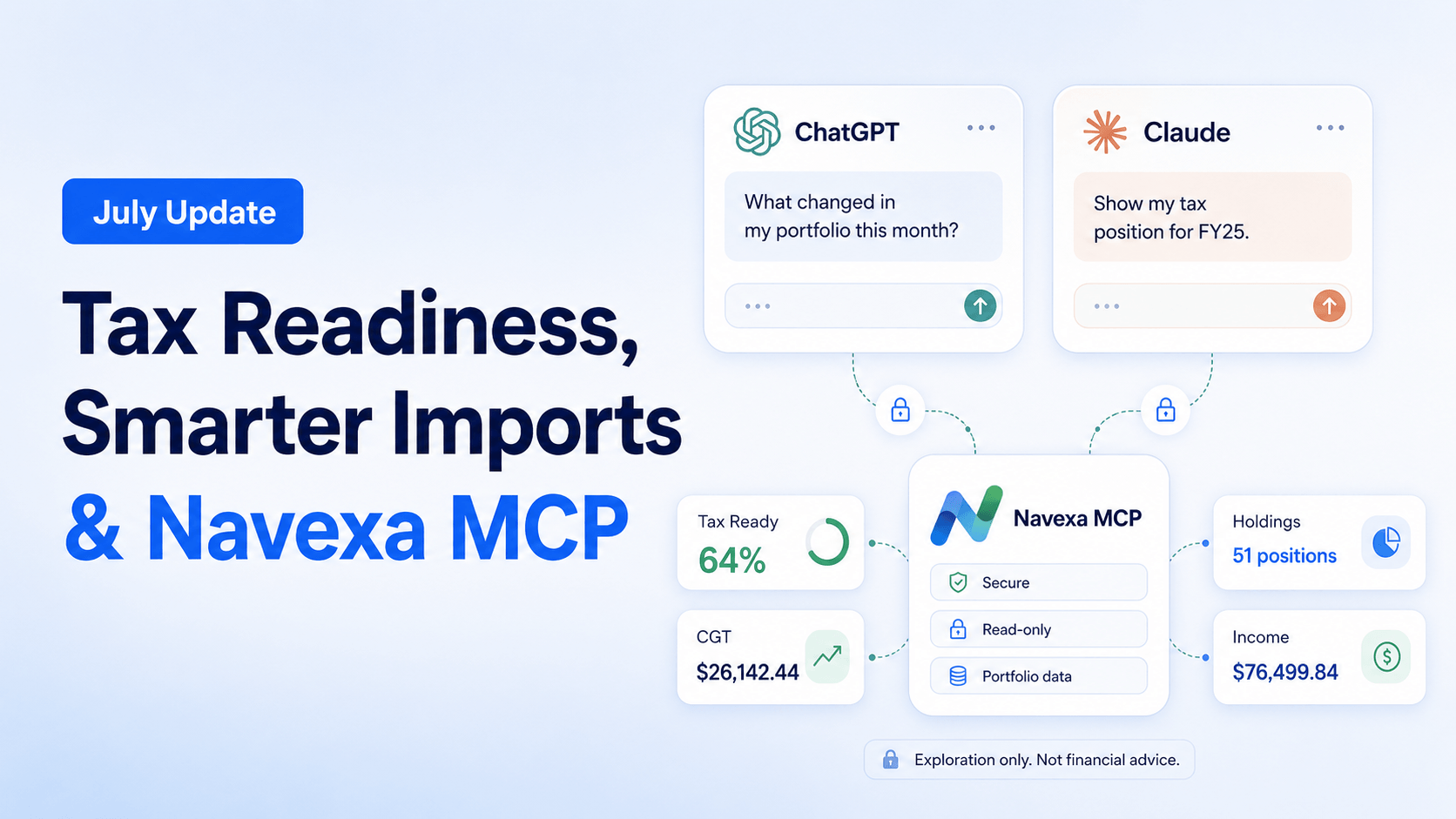
July is tax time for Australian investors.
So this month’s Navexa update is focused on a simple idea:
Making it easier to review your portfolio data before using your tax reports.
In this update, we cover the new capital loss area, changes to the Tax Overview page, smarter importing, Navexa MCP, and a quick preview of the upcoming mobile app.
In the July video, Tom walks through the latest changes inside Navexa.
This includes:
We recently ran a webinar with Pearler covering ETF tax, AMIT statements and cost base adjustments.
This is one of those areas that can be confusing, especially if you hold ETFs and receive an annual tax statement that does not look exactly like the cash distributions you received during the year.
The simple version is this:
ETF tax reporting is not always just about the cash you received.
AMIT components, cost base adjustments, DRPs, partial sales and multiple purchase parcels can all affect the records you need to keep.
The webinar was not about turning everyone into a tax expert.
It was about explaining the moving parts in plain English, and showing how better records can make tax time easier to review.
You can watch the webinar replay, view the slides and read the breakdown here:
ETF Tax, AMIT, Cost Base & CGT: What Australian Investors Need To Know
One of the biggest updates this month is the new Capital Losses area in Navexa.
You can now open Tax Reporting, go to Overview, and review capital loss information from one place.
This includes:
That matters because tax reporting is not always contained to one year.
A loss from an earlier financial year may affect later Navexa CGT calculations, depending on the data recorded in your account and how your records have been maintained.
The key point is simple: capital losses move forward through time. They do not apply backwards in Navexa.
This is especially useful if you are new to Navexa and already have historical capital losses from earlier lodged tax years.
You can add those historical losses manually, give them a year, add a note, and keep them visible inside the platform.
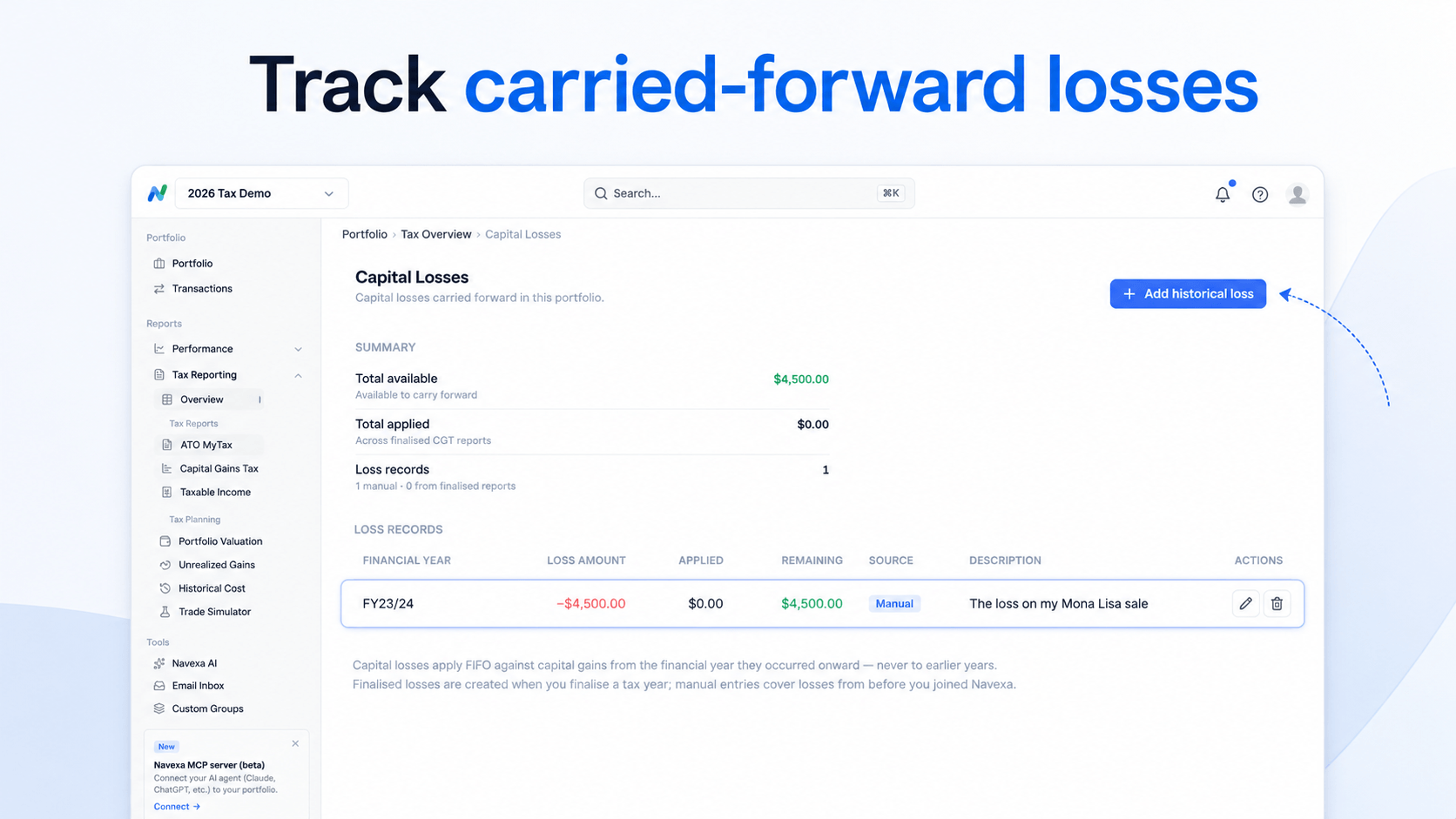
If you add a historical capital loss manually, Navexa can use that record within the platform’s tax reporting workflow.
But your lodged tax return and tax records remain the source of truth.
In plain English:
Navexa helps organise the records. It does not replace your accountant, registered tax agent or lodged tax history.
So if you are entering older losses, it is worth checking the figures against your previous tax records before relying on them in later reports.
That is the main thing.
The Tax Overview page has also been reworked.
This is now the main place to start when you are preparing a portfolio for tax time.
From here, you can choose the financial year you want to review. For example, 2025/26.
Navexa then shows a checklist for that year, so you can see what may need attention before using the reports.
That might include:
This is useful because tax reporting depends on the quality of the data behind it.
If a buy trade is missing, an AMIT statement has not been entered, or an earlier year has not been reviewed, the current year may not tell the full story.
A common mistake is to jump straight into the current financial year.
That makes sense at first.
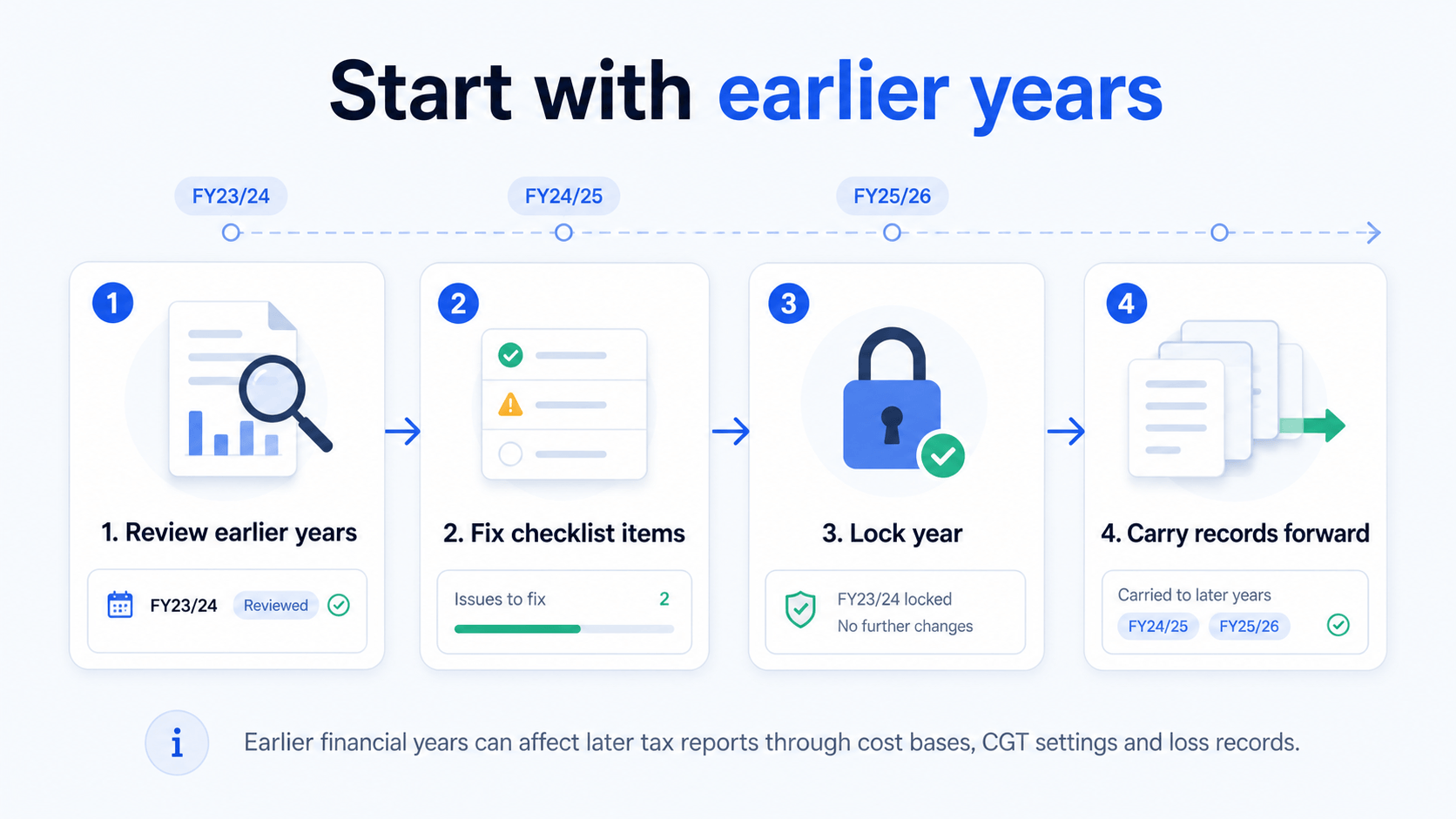
But if your portfolio has several years of history, earlier years can affect later reports.
This can happen through:
That is why the updated Tax Overview gives you a clearer view of previous years.
Once a year has been reviewed, you can lock it.
Locking a year helps preserve the calculations and carry-forward amounts from that year. If you later find a missing trade, income record or AMIT statement, you can unlock the year, update the data, and review the flow-on effect.
We have also rolled out improvements to importing.
This has been discussed in a few previous updates as AI-assisted importing.
But the goal is not to make importing feel like a big AI feature.
The goal is simpler:
Fewer failed imports. Less manual cleanup. A smoother way to get data into Navexa.
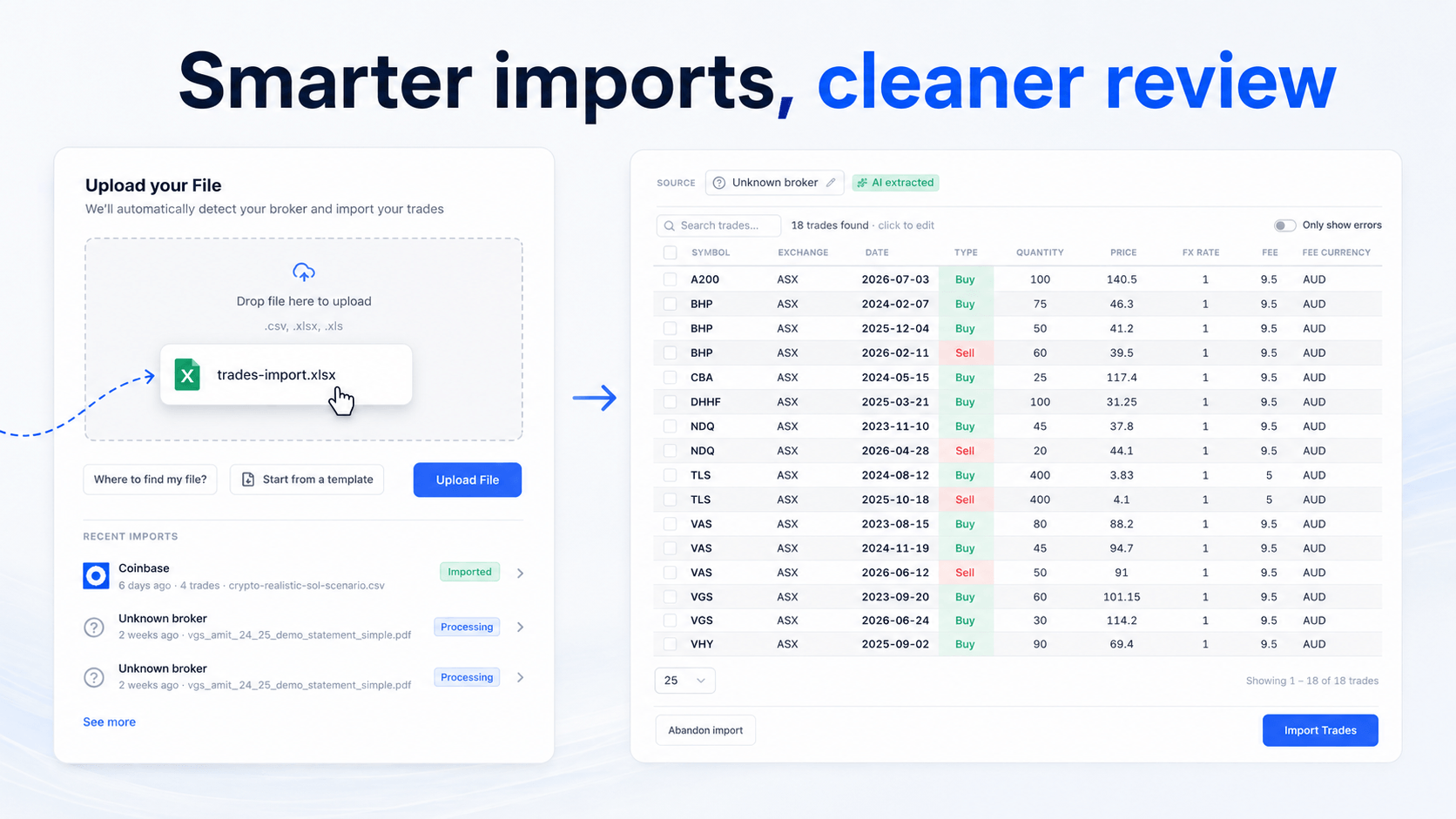
In the July update, Tom imports a demo file that does not perfectly match the standard Navexa template.
Navexa identifies the file, extracts the trade data, lets the user review the result, and then imports the records into the portfolio.
That review step still matters.
Even with smarter importing, you should still check the extracted trades before saving them. Broker files, registry files and custom spreadsheets can vary.
If you want the cleanest result, you can still start from the in-platform templates for stocks, crypto or custom investments.
But if your file is not perfectly formatted, the smarter importer is designed to give you a better chance of getting a usable result.
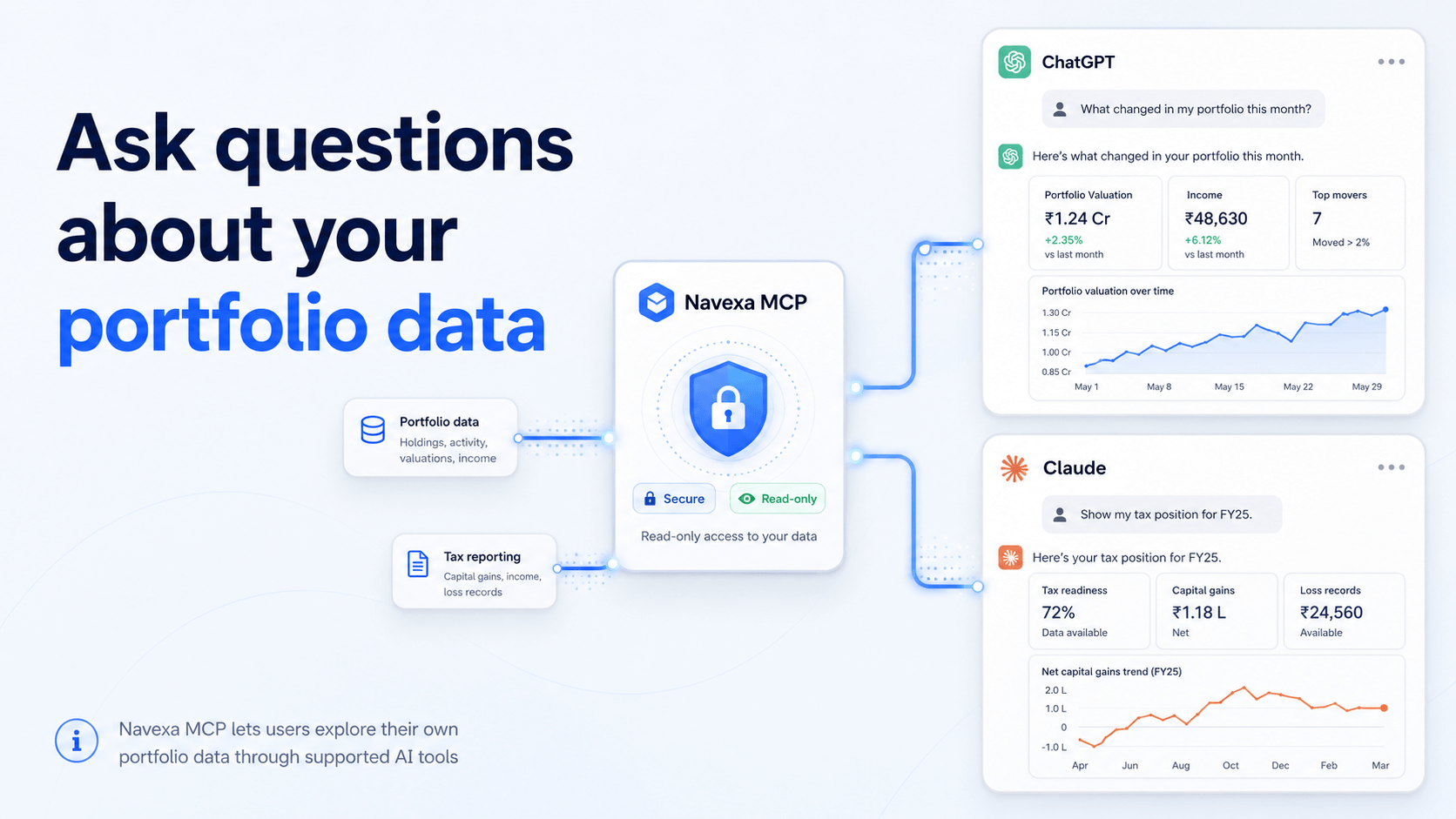
Navexa MCP is now available in beta.
MCP lets supported AI tools, including ChatGPT and Claude, connect with your Navexa account so you can ask questions about your own portfolio data.
The useful part is that you are not limited to one fixed report.
You can ask questions like:
This can help you explore your portfolio in a more conversational way.
But the boundary is important.
Navexa MCP is for exploring and understanding your own portfolio data. It is not financial advice, tax advice, or a recommendation to buy, sell or hold anything.
A safer way to use it is to ask for factual summaries, comparisons, charts and records.
A riskier way to use it would be asking what to sell, what to buy, or how to get a particular tax outcome.
That is not what Navexa is for.
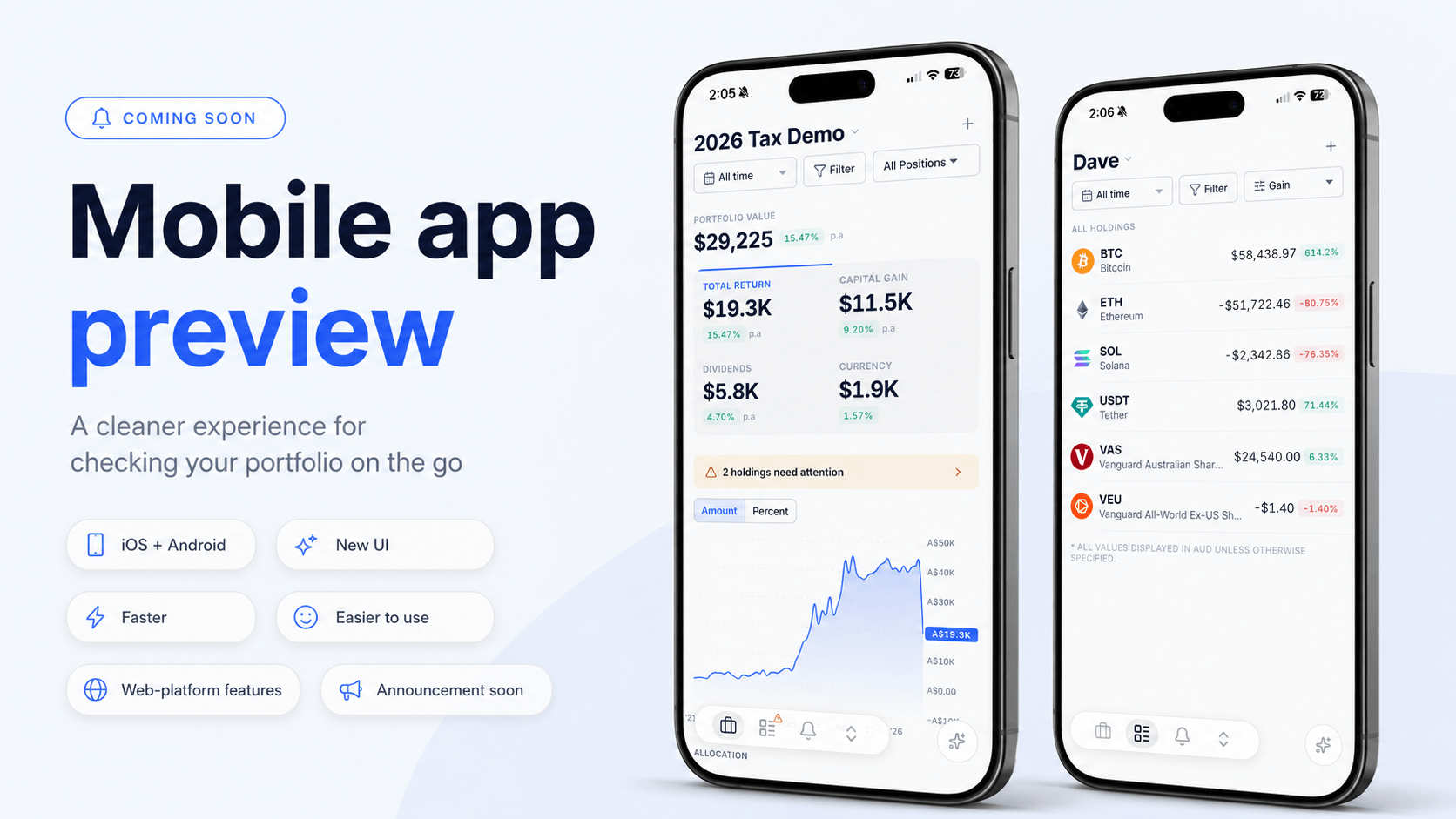
The new Navexa mobile app is also getting close.
We are working through the final fixes and polish before release.
The goal is to make it easier to check your portfolio from your phone, review key numbers quickly, and use Navexa in a cleaner mobile experience.
The web platform will still be the main place for deeper workflows like imports, detailed tax reporting and more advanced review.
But the mobile app should make everyday portfolio checking much easier.
Tax time is naturally busy.
If you are working through your portfolio, the Help Center is a good place to start.
Inside Navexa, you can use the help button to search support articles or start a conversation.
Useful topics include:
You can also ask the AI support bot questions. If it cannot help, the conversation can go to a human support team member.
During tax time, checking the Help Center first can be the fastest way to find the answer.
No.
Navexa provides portfolio tracking and tax reporting tools based on the data recorded in your account. It does not lodge your tax return.
No.
The checklist helps you review the data Navexa uses for tax reporting. It does not mean your full personal tax position has been checked.
Navexa can help track recorded capital loss balances inside your account, including losses calculated by Navexa and historical losses you enter manually.
Your lodged tax records remain the source of truth.
Yes.
The smarter importer is designed to reduce manual cleanup, but you should still review extracted data before saving it to your portfolio.
You can ask factual questions about your own Navexa portfolio data, such as portfolio summaries, income breakdowns, realised gains and losses, and simple charts.
Avoid asking for buy, sell, hold or tax recommendations.
The new mobile app is close to release. We are working through the final bugs and polish before rollout.
The July update is really about tax readiness.
Not in the sense that software can replace your accountant or registered tax agent.
It can’t.
But Navexa can help you keep better records, review earlier years, track loss balances, clean up missing data, import trades more easily, and explore your portfolio information in more useful ways.
If you are preparing your portfolio for tax time, start with Tax Overview.
Choose the right financial year.
Review the checklist.
Fix anything that needs attention.
Then work through your reports with the right records in place.
Better records. Clearer review. Easier tax time.
This article is general information only and does not constitute financial, legal or tax advice. It does not take into account your personal circumstances, objectives or needs. Navexa provides portfolio tracking and reporting tools based on data recorded in your account, but does not provide personal financial, legal or tax advice. Tax rules, platform features and legislation may change. Always speak with a qualified accountant, registered tax agent, financial adviser or legal professional before making financial, legal or tax decisions.
Track your portfolio in Navexa
Free 14-day trial. No credit card required.
Try Navexa Free →Watch the Week 1 webinar, read or download the slides, and work through portfolio setup, imports, missing trades, dividends and the Soul Patts–Brickworks merger.
Navexa now supports Indian shares on NSE and BSE. Find thousands of stocks, including Infosys, and track them alongside investments from other supported markets.
Why an RBA rate change reaches mortgages, spending and investments at different times, and why lower inflation can still leave life feeling expensive.
.png)